
VLSM Explained — Variable Length Subnet Masking with Examples
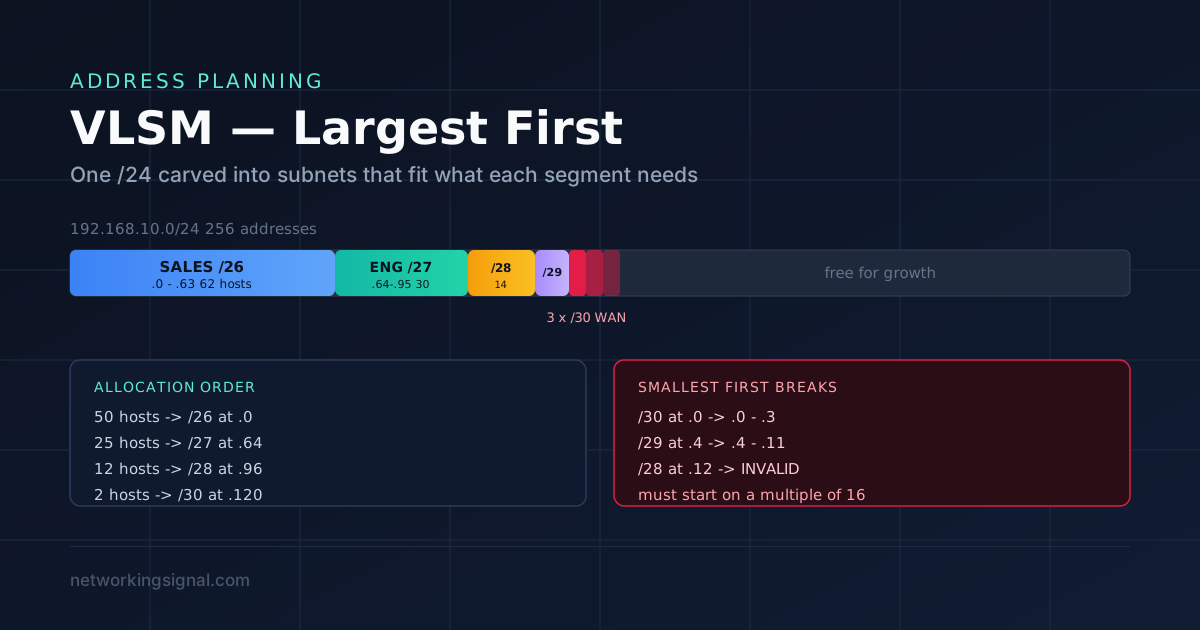
VLSM lets you use different subnet mask lengths inside one network so each segment gets only the addresses…
![Animated diagram for [Solutions] Ethernet Doesn't Have a Valid IP Configuration, showing five checks in order from symptom to name lookup, with the gateway check pulsing red as the first failure](https://www.networkingsignal.com/wp-content/uploads/2026/09/auto/art-ethernet-doesnt-have-a-valid-ip-configuration.svg)
Dealing with technology glitches can be exasperating, especially when you’re trying to connect to the internet and encounter the error message “Ethernet doesn’t have a valid IP configuration.”
This error indicates an issue with your network settings that prevent your device from obtaining a valid IP address, which is crucial for internet connectivity.
In this article, we will delve into the possible causes of this error and provide comprehensive troubleshooting steps to help you resolve it swiftly.
Before diving into the troubleshooting process, let’s grasp the basics of IP configuration.
An IP address is a unique numerical label assigned to each device connected to a computer network.
It serves as the device’s identity and allows it to communicate with other devices on the same network or the internet.
IP configuration involves obtaining this address automatically (through DHCP) or manually (static IP configuration).
The “Ethernet Doesn’t Have a Valid IP Configuration” error message can be a frustrating roadblock to accessing the internet.
It typically indicates an issue with the network settings on your device that prevents it from obtaining a valid IP address. Here are the main reasons that can lead to this error:
The Dynamic Host Configuration Protocol (DHCP) is responsible for automatically assigning IP addresses to devices on a network.
If there’s a problem with the DHCP configuration, your device might fail to receive a valid IP address, leading to an error message.
Possible reasons for DHCP issues include:
Network drivers are software components that facilitate communication between your device’s hardware and the operating system.
Outdated, incompatible, or corrupted network drivers can disrupt this communication, preventing your device from obtaining a valid IP configuration.
Common driver-related issues include:
The Transmission Control Protocol/Internet Protocol (TCP/IP) stack is a core component of network communication.
It manages the exchange of data packets between devices. If the TCP/IP stack becomes corrupted, it can result in various connectivity issues, including the “Ethernet Doesn’t Have a Valid IP Configuration” error.
TCP/IP stack corruption can occur due to:
Physical hardware components, such as Ethernet cables and ports, play a crucial role in establishing network connections.
If there’s a problem with the physical components, it can result in a failure to establish a valid IP configuration.
Common physical connection issues include:
Conflicts within your network configuration settings can result in the “Ethernet Doesn’t Have a Valid IP Configuration” error.
This could be due to conflicting IP addresses or subnet masks. Network configuration conflicts can arise from:
Let’s delve into the step-by-step troubleshooting process to resolve the “Ethernet doesn’t have a valid IP configuration” error:
A simple restart can often fix minor network glitches. Begin by turning off your modem, router, and computer.
Wait for a few minutes, then turn them back on in the following sequence: modem, router, and computer.
When you restart these devices, you allow them to refresh their configurations and re-establish communication with each other.
Oftentimes, this can clear temporary network issues that might have been causing the “Ethernet doesn’t have a valid IP configuration” error.
Outdated or incompatible network drivers can cause connectivity issues. To update your drivers, visit your computer manufacturer’s website or use a driver update tool.
Keep in mind that having the latest drivers ensures compatibility with the latest network protocols and technologies.
If you’ve recently updated your network drivers and started encountering the error, it’s possible that the new drivers are causing the problem.
In such cases, rolling back to a previously working driver version might resolve the issue.
To do this, go to “Device Manager,” locate your network adapter, right-click it, select “Properties,” navigate to the “Driver” tab, and click “Roll Back Driver” if the option is available.
The TCP/IP stack is a critical component of network communication. If it becomes corrupted, it can lead to various connectivity issues, including the “Ethernet doesn’t have a valid IP configuration” error.
Resetting the TCP/IP stack can often clear these issues and restore normal network functionality.
To reset the TCP/IP stack, open Command Prompt as an administrator. Type the following commands one by one, pressing Enter after each:
netsh winsock reset netsh int ip reset
After executing these commands, restart your computer to apply the changes. The reset process will reinitialize the TCP/IP configuration, potentially resolving any corruption that was causing the error.
Disabling and re-enabling the network adapter is a quick way to refresh its settings and potentially resolve connectivity problems. Follow these steps:
- Right-click the Start button and select “Device Manager.”
- In the Device Manager window, expand the “Network Adapters” section to view your network adapter.
- Right-click the network adapter and choose “Disable.”
- After a moment, right-click the adapter again and select “Enable.”
This action can reset the adapter’s state and settings, which might be necessary if the adapter was in an inconsistent state causing the “Ethernet doesn’t have a valid IP configuration” error.
Physical connectivity issues are often overlooked but can lead to network problems.
Ensure that all Ethernet cables are securely connected to their respective ports on both your computer and router/modem.
A loose or damaged cable can disrupt network communication and prevent the device from obtaining a valid IP address.
Inspect the Ethernet ports on your computer and router/modem for any visible damage.
If you notice bent pins, debris, or other abnormalities, it’s essential to address them before attempting to establish a connection again.
Windows includes a built-in network troubleshooter that can automatically identify and fix common connectivity issues. Here’s how to run it:
- Click on the network icon in the taskbar (it looks like a computer monitor or Wi-Fi signal icon).
- Select “Troubleshoot problems” from the drop-down menu that appears.
- Windows will run diagnostics to detect and resolve any issues. Follow the on-screen instructions.
The network troubleshooter will attempt to identify the cause of the “Ethernet doesn’t have a valid IP configuration” error and apply relevant fixes.
This automated process can be particularly helpful if you’re not comfortable with manual troubleshooting steps.
If your device is unable to obtain a valid IP address automatically from the DHCP server, you can configure it manually. Here’s how:
- Right-click the network icon in the taskbar and select “Open Network & Internet settings.”
- Click on “Change adapter options” to open the network connections window.
- Right-click your Ethernet connection and choose “Properties.”
- In the Properties window, select “Internet Protocol Version 4 (TCP/IPv4)” and click the “Properties” button.
In the TCP/IP properties window, select the option to “Use the following IP address.”
Enter the IP address, subnet mask, default gateway, and DNS server addresses manually. Make sure to enter accurate values based on your network configuration. Once done, click “OK” to apply the changes.
Keep in mind that using a static IP address requires careful configuration to avoid conflicts on the network.
Ensure that the IP address you choose is within the valid range defined by your network’s subnet.
If you suspect that a particular application is causing the “Ethernet doesn’t have a valid IP configuration” error, you can temporarily disable or uninstall it to see if the issue resolves.
Third-party software, especially firewall and security programs, can sometimes interfere with network communication.
To disable a firewall or security program temporarily, locate its icon in the system tray (usually near the clock on the taskbar) and right-click it.
Look for an option to disable or pause the program’s protection temporarily. Keep in mind that disabling these programs leaves your computer more vulnerable to security threats, so only do this as a troubleshooting step.
If disabling the program resolves the issue, you can explore the program’s settings to identify any configuration conflicts or add exceptions for your network-related applications.
The firmware of your router, modem, or other network devices can play a significant role in network stability and compatibility.
Outdated firmware might contain bugs or compatibility issues that lead to connectivity problems, including the “Ethernet doesn’t have a valid IP configuration” error.
To update the firmware of your network devices, follow these general steps:
- Identify the manufacturer and model of your router or modem.
- Visit the manufacturer’s official website and locate the support or downloads section.
- Look for firmware updates specifically designed for your device’s model and version.
- Download the latest firmware update and follow the manufacturer’s instructions for installation.
It’s essential to follow the manufacturer’s instructions carefully while updating firmware.
Incorrect firmware installation can lead to device malfunction. Firmware updates can often address compatibility issues, enhance security, and improve overall performance.
Malware infections can have a significant impact on network functionality. Some malware variants are designed to disrupt communication and compromise your system’s security.
Running a thorough malware scan using reputable antivirus or antimalware software is an important step in troubleshooting network issues.
Here’s how to run a malware scan using Windows Defender (Windows 10):
- Click on the Start button and select “Settings” (the gear icon).
- In the Settings window, select “Update & Security.”
- Choose “Windows Security” from the left sidebar.
- Click on “Virus & threat protection” and then select “Scan options.”
- Choose the “Full scan” option and click “Scan now.”
Windows Defender will scan your entire system for malware, potentially identifying and removing any threats that might be causing network issues.
If you’re using third-party antivirus software, open the software’s interface and look for a similar option to perform a full system scan.
Dealing with the “Ethernet doesn’t have a valid IP configuration” error can be frustrating, but armed with the right knowledge and troubleshooting steps, you can overcome this issue and restore seamless internet connectivity.
By understanding the reasons behind the error and following the detailed troubleshooting methods provided in this article, you’ll be well-equipped to diagnose and fix the problem on your own.
Remember that every network environment is unique, and the solution that works for one person might not work for another.
If you encounter difficulties during the troubleshooting process or if the issue persists despite your efforts, don’t hesitate to seek professional assistance from IT experts or your device’s manufacturer.
Hand-picked articles you might also find useful.
 IPv4
IPv4 VLSM lets you use different subnet mask lengths inside one network so each segment gets only the addresses…
 IPv4
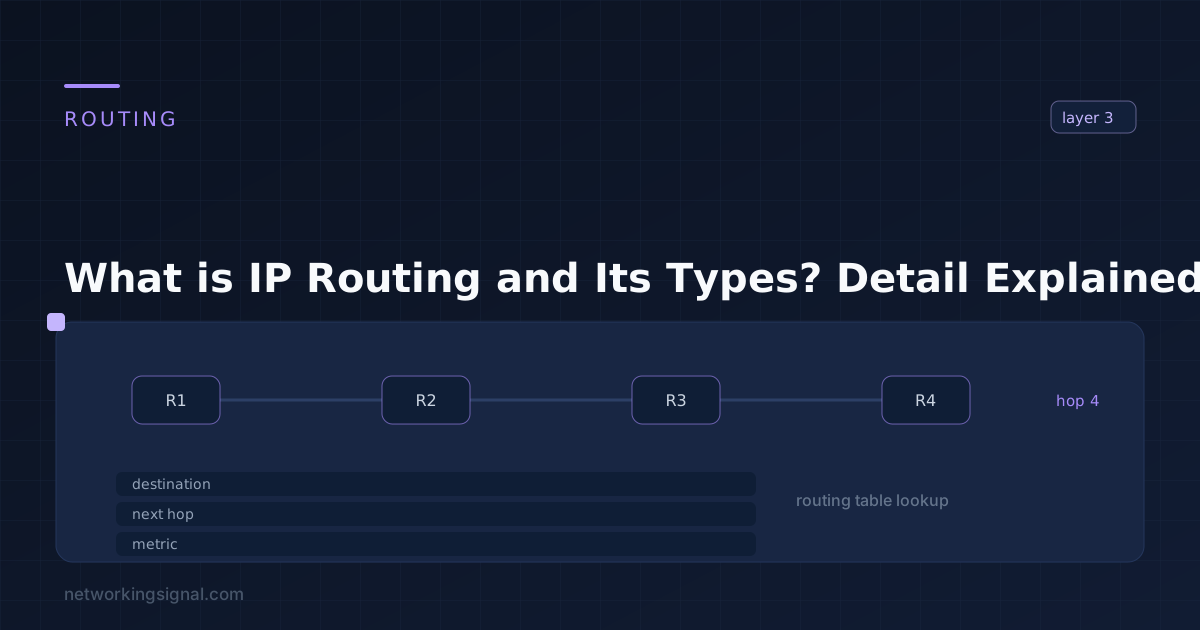
IPv4 What is IP Routing? IP Routing is the process of forwarding packets from one network to another based…
 IPv4
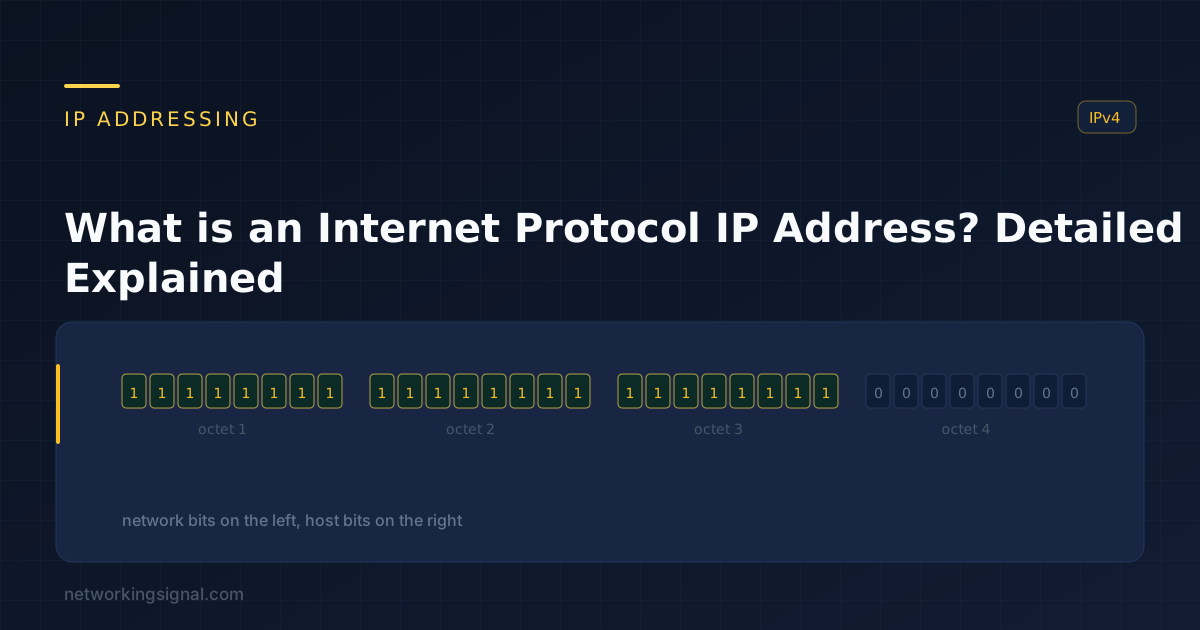
IPv4 What is Internet Protocol ? Internet Protocol, or IP, is the main communications protocol used on the Internet.…