
Best DNS for PS5 in 2026 (And Why It Will Not Lower Your Ping)
The best DNS servers for PS5 in 2026, with the setup steps. Changing DNS does not reduce in…
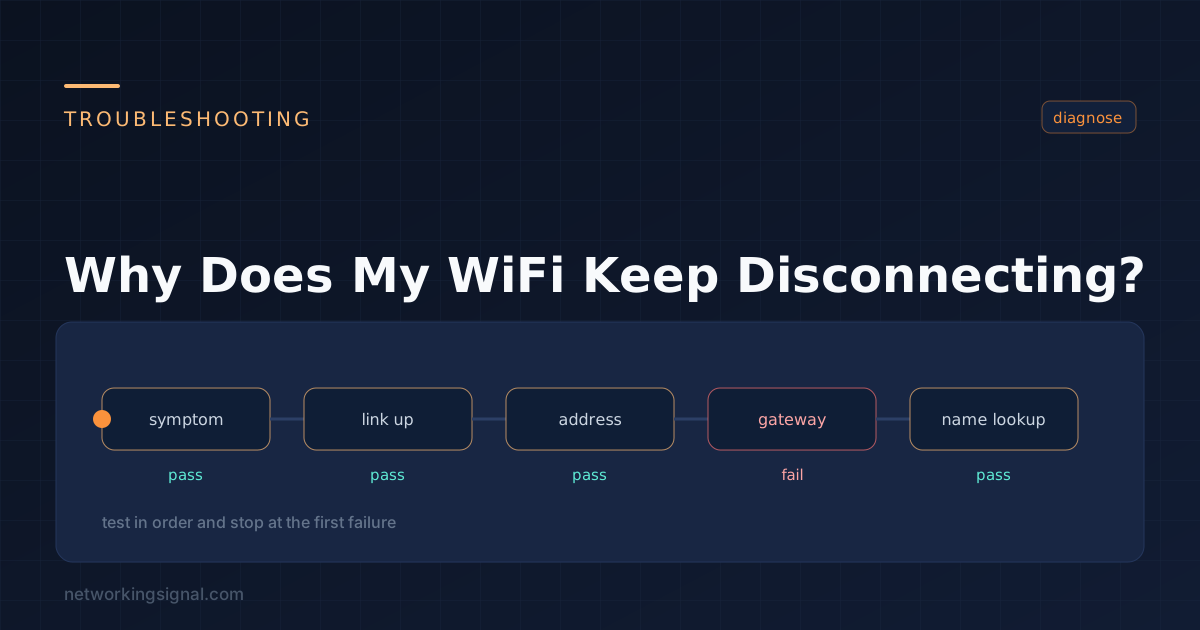
Reliable Wi-Fi connectivity is essential in the modern digital era, but temperamental internet that drops connections can quickly disrupt work, entertainment, and smart home capabilities.
Frustrating Wi-Fi problems often stem from outdated routers, interference from other devices, distance/barriers blocking signals, or congested networks. By troubleshooting the root causes and exploring solutions like newer routers, mesh systems, boosters, proper placement, and settings customization, you can resolve Wi-Fi headaches.
This guide will diagnose common disconnect issues and provide actionable steps tailored to your environment for steady, high-performing wireless networking.
The first step is determining where the issue originates so you can narrow down the culprits. Problems could stem from:
Router manufacturers periodically release updated firmware to address bugs, security flaws, and performance issues. Outdated firmware often causes stability problems leading to WiFi networks disconnecting devices.
Routers have maximum device limits and hardware capabilities. Connecting too many devices or taxing the router’s processor with extremely demanding tasks can overload the router causing disconnects.
Microwaves, baby monitors, Bluetooth devices, fluorescent lighting, and other electronics can emit signal interference disrupting WiFi networks. Neighbors’ WiFi can also cause interference if using the same WiFi channel.
Thick walls, water pipes, and reflective surfaces can weaken WiFi signals preventing them from reaching devices with enough bandwidth to maintain connections. Large or multi-story homes face greater physical barrier issues over smaller spaces.
Look Here: Boost WiFi Signal Through Walls: Tips and Tricks to Improve Connectivity
Some advanced router settings like client isolation, access control, and bandwidth rate limiting when configured incorrectly can inadvertently block connected devices from accessing the WiFi network fully.
Old WiFi cards and antennas in laptops, phones, and other WiFi-enabled devices may have outdated wireless standards making it difficult to maintain consistent connections on modern routers.
If devices are too far away from the router with weak signal strength, connections will be unstable and prone to disconnecting when bandwidth demands fluctuate.
In apartment buildings and dense neighborhoods with many WiFi networks nearby all using the default channel can create interference and signal congestion leading to disconnects.
Viruses, spyware, cryptojacking malware, and other infections can overwhelm device resources causing them to disconnect from WiFi once resources max out.
Apps and programs that consume large amounts of device memory, processor usage, and bandwidth can essentially overload devices until they disconnect from the WiFi network. Video streaming, video calls, gaming, and torrenting are common culprits.
When devices disconnect from the WiFi review router logs to determine if specific devices are impacted more than others. Note error codes and messages to identify causes like DHCP errors, authentication failures, etc.
Run continuous pings and internet speed tests during the disconnect period. Spikes in latency and packet loss indicate problems reaching the router rather than external issues like the ISP.
Check signal strength readings in device network settings when disconnected to determine if distance, barriers, or interference is weakening the WiFi signal and causing drops.
With consistent testing and logging of the various factors occurring during WiFi disconnect events, you can accurately diagnose the root cause and determine the appropriate resolution.
Once you have addressed the specific issues plaguing your WiFi network, take proactive measures to prevent future disconnects:
Position the router in a central location away from potential interference. Install mesh networking or WiFi extenders to strengthen signals across large spaces.
Set bandwidth rate limiting rules on the router to prevent resource-intensive devices from overloading the network. Configure router settings properly to suit your network needs to be balanced with device capabilities.
If you have methodically troubleshooted WiFi disconnect issues but problems persist, or the root cause is unclear, it is best to call a professional network administrator or managed IT services company.
Experts have advanced diagnostic tools, spectrum analyzers, and experience addressing WiFi problems across various environments. They can remotely review router configurations, logs, and usage patterns and provide appropriate router settings, hardware recommendations, and placement guidance tailored to your floorplans and devices.
Reliable WiFi is essential in the modern connected age. By taking the right troubleshooting steps and preventative measures, you can minimize frustrating disconnections and enjoy strong WiFi coverage across your home or office.
Unreliable Wi-Fi that drops connections frequently can be infuriating but is rarely an unfixable problem. Strategically assessing your network environment, interference sources, router model age, and placement can expose the culprits sabotaging your Wi-Fi capabilities.
Pursuing purpose-fit solutions like newer routers or mesh systems, signal boosters and extenders, and optimized router locations and settings can pay dividends in the form of faster speeds, expanded coverage, and device support.
Reliable wireless connectivity empowers productivity and entertainment, making resolving Wi-Fi headaches a worthwhile endeavor. Carefully applying fixes targeted to diagnosed problems will get you streaming, surfing, and smart-homing without disruptive disconnections.
Hand-picked articles you might also find useful.
 Internet & ISP
 The best DNS servers for PS5 in 2026, with the setup steps. Changing DNS does not reduce in…
 Internet & ISP
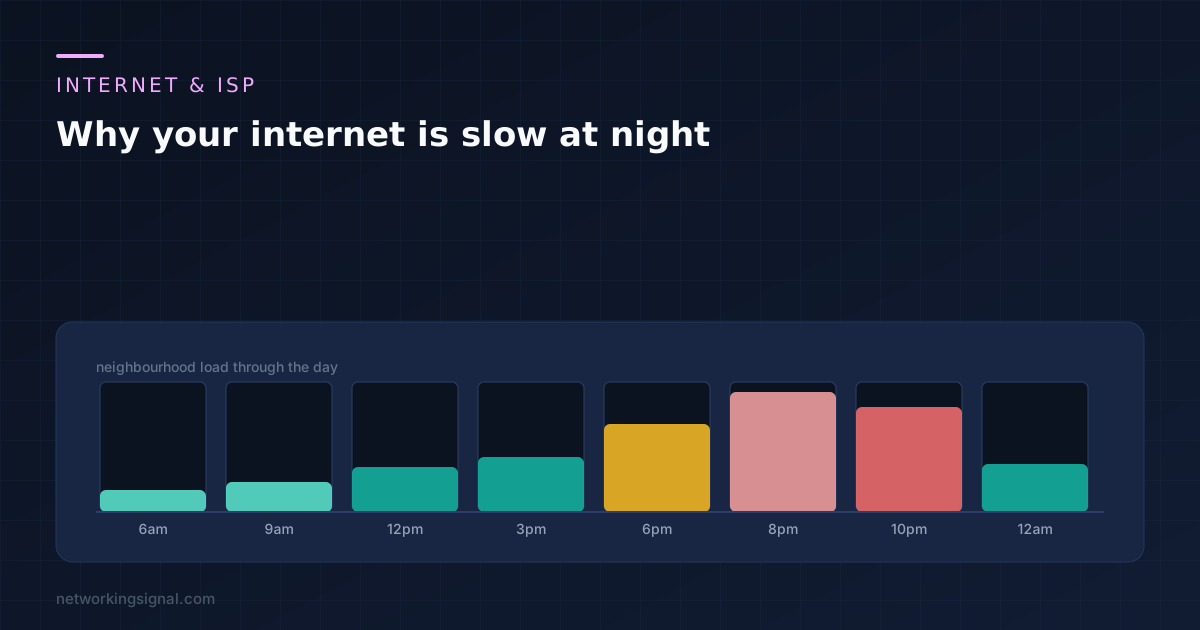
 The 8pm slowdown has five possible layers and only one is yours. The 3am test that separates your…
 Internet & ISP
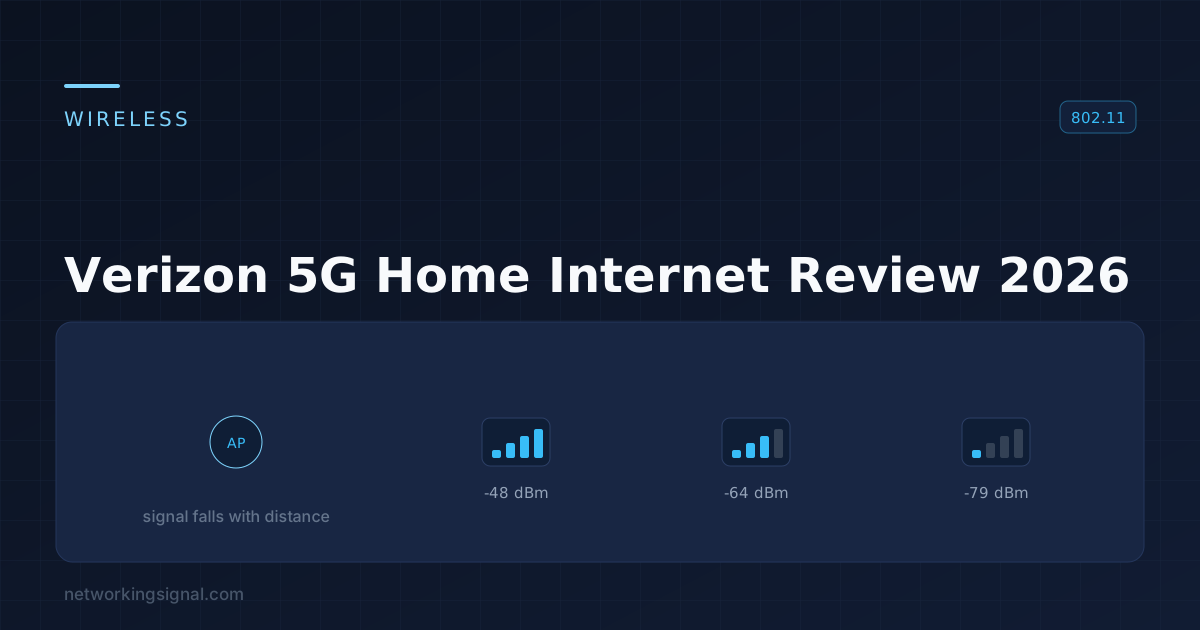
 An honest review of Verizon 5G Home Internet in 2026, covering real speeds, the price lock, and who…