
6 Best Wireless Routers With Parental Controls and Time Restrictions in 2026
The best routers with parental controls and time limits in 2026. The ASUS RT-BE58U at $143 is the…
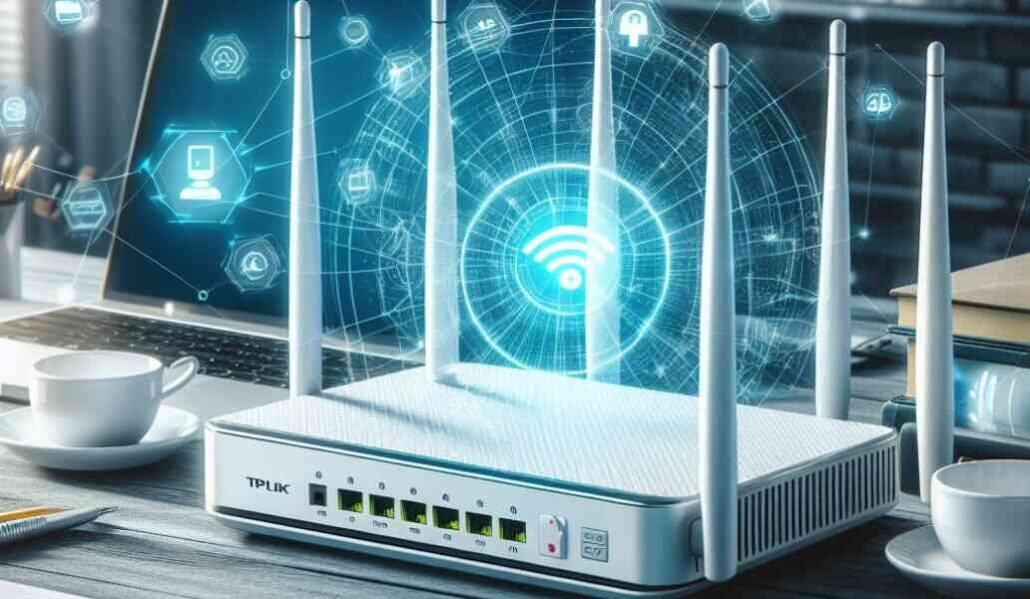
A TP-Link router is a network device that connects computers, smart devices, and other wired and wireless products to the internet. The router distributes the internet connection throughout a home or office by creating a local area network (LAN).
Resetting a TP-Link router means restoring it to its original factory default settings. This clears any configured settings, passwords, and network connections. Resetting a router can fix issues like forgotten passwords and connection problems or prepare it for use with a new internet service provider.
This comprehensive guide will teach readers how and when to reset a TP-Link router safely.
There are a few common instances when resetting your TP-Link router to factory defaults may be necessary:
Forgotten Admin Password
Suppose you can no longer access the router’s administrative interface because you forgot the admin username and password. In that case, a reset will allow you to access the router again using default login credentials.
Connectivity and Speed Issues
If your router is experiencing frequent disconnections or unusually slow Wi-Fi speeds, a reset can often improve network connectivity and performance. Resetting eliminates any misconfigurations that may be causing problems.
Switching Internet Service Providers
When changing to a new internet service provider (ISP), resetting your router will clear out old ISP firmware and settings that could cause conflicts with the new provider’s network.
Router Malfunction
In rare cases, when a router is acting up and a power cycle does not resolve the problem, a reset may be required to restore normal operations. Issues like frozen lights/screens, failed firmware updates, or unresponsive interfaces can often be fixed with a reset.
Before resetting your TP-Link router, take some preparatory steps:
Backup your router configuration: Take note of any custom settings you want to save, like port forwarding rules, connected devices, parental controls, etc. These will all be erased after resetting.
Gather login credentials & ISP information: Have your Wi-Fi network name and password handy, as well as your admin username and password. Also, gather details like ISP connection type (DHCP/PPPoE) and any account numbers.
Disconnect devices from the network: Power off and disconnect any wired/wireless devices from the network before resetting your router.
The reset process will vary slightly depending on your router model. Refer to the documentation if needed.
1. Access Router Admin Interface
2. Navigate to the Reset Option
3. Initiate Router Reset
4. Wait for the Reset to Complete
After successfully resetting your TP-Link router, there are a few important configuration steps:
1. Set Up Admin Password
2. Configure Network Names
3. Update Firmware
4. Connect Network Devices
If you have difficulty resetting your router or experience connection problems afterward:
Failed Reset Attempt
Connectivity Problems
Difficulty Accessing Web Interface
Resetting a TP-Link router to factory default settings clears out all previous configurations and resets everything to the original settings.
In many situations, this process can help restore normal functionality in cases like forgotten passwords, connection problems, switching ISPs, or even resolving router malfunctions. Just be sure to back up your settings before resetting when possible.
Follow the step-by-step resetting guide provided for your model. Afterward, take time to set up your network preferences again properly. With this helpful guide, you will be prepared to reset your TP-Link router when needed successfully.
Seek assistance from TP-Link customer support if any complex issues arise during or after the reset process.
Hand-picked articles you might also find useful.
 Networking Gears
 The best routers with parental controls and time limits in 2026. The ASUS RT-BE58U at $143 is the…
 Modems
 The Xfinity-approved modem router combos worth buying in 2026, what each one really costs against Comcast's rental fee,…
 Networking Gears
 The routers that actually match a PS5 in 2026. The TP-Link Archer BE550 at $200 is the closest…