
6 Best NAS Devices for Home in 2026 (Diskless Picks Compared)
The best home NAS for 2026. The Synology DS223j at $189.99 wins on software, and the TerraMaster F2-425…
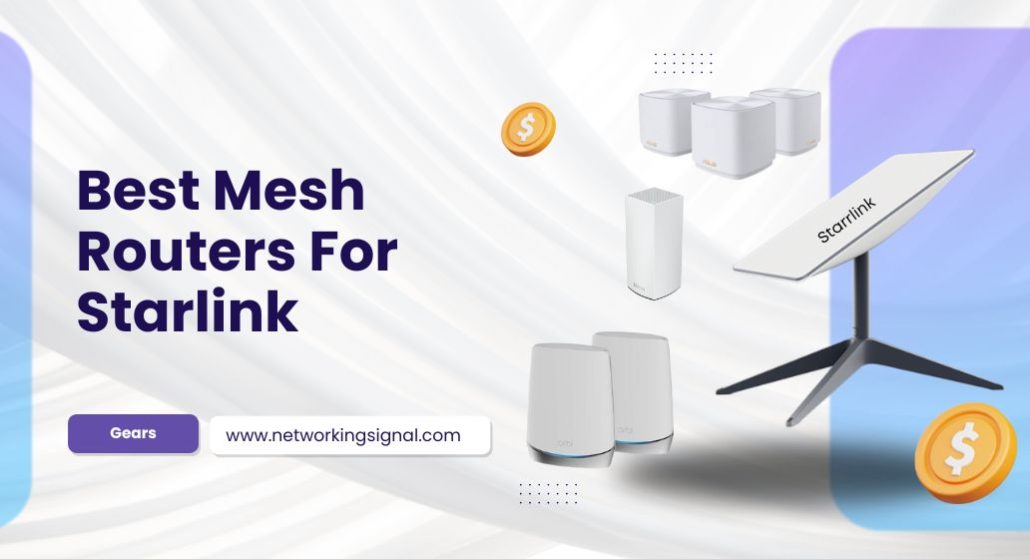
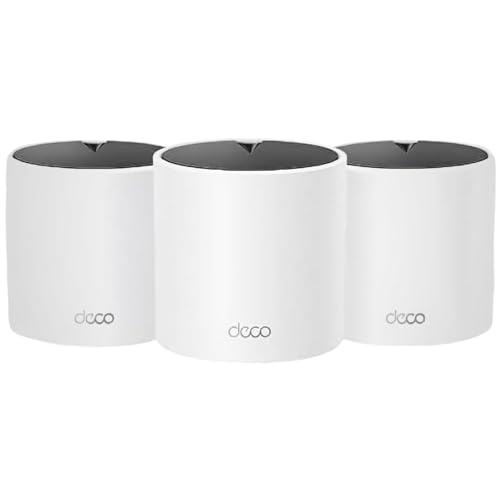
The TP-Link Deco X55 three-pack ($150) is the best mesh system for Starlink. It covers 6,500 sq ft, has three gigabit ports on every unit, and supports wired backhaul, and it costs a third of what a flagship mesh does.
Why the cheap answer is the right answer here: Starlink Standard delivers roughly 100 to 200 Mbps in most locations. A $150 mesh already carries several times that. Spending $400 on a WiFi 7 system buys you throughput your dish will never produce. What actually matters for Starlink is coverage, bypass mode, and graceful handling of brief dropouts, none of which get better as the price goes up.
| Product | System | WiFi | Coverage | Ports per unit | Price |
|---|---|---|---|---|---|
 | TP-Link Deco X55 (3-pack)Best overall | WiFi 6 AX3000 | 6,500 sq ft | 3 × 1G | $149.97 |
 | TP-Link Deco X15 (3-pack)Budget pick | WiFi 6 AX1500 | 5,600 sq ft | 2 × 1G | $105.91 |
 | TP-Link Deco XE75 Pro (3-pack)Best coverage | WiFi 6E tri-band | 7,200 sq ft | 2.5G + 2 × 1G | $279.99 |
 | Amazon eero 6+ (3-pack)Easiest setup | WiFi 6 gigabit | 4,500 sq ft | 2 × 1G | $299.99 |
 | NETGEAR Orbi 370 (3-pack)Best WiFi 7 | WiFi 7 dual-band | 6,000 sq ft | 2.5G ready | $299.99 |
 | TP-Link Deco X20 (3-pack)Best value | WiFi 6 AX1800 | 5,800 sq ft | 2 × 1G | $129.97 |
 | Cudy M1200 (3-pack)Cheapest | WiFi 5 AC1200 | 4,000 sq ft | 2 × 1G | $79.90 |
Almost every “best mesh for Starlink” list is really just a best-mesh list with the word Starlink added, and that produces bad advice, because the constraint that shapes every other buying guide does not apply here.
Starlink Standard delivers somewhere between 50 and 250 Mbps depending on your cell’s congestion, weather and time of day. Even the best-case figure is well under what a $105 mesh system moves comfortably. The bottleneck is the dish and the satellite, not your WiFi, and no mesh system on earth changes that.
What does matter is different:
Coverage, because Starlink users tend to have space. The dish needs an unobstructed view of the sky, which usually means a roof or a mast well away from where people actually sit. Starlink customers are also disproportionately rural, larger properties, outbuildings, thicker walls. A three-node mesh solves a problem that a single router genuinely cannot.
Bypass mode, because two routers fight each other. Starlink ships with its own router built into the power supply. If you add a mesh system without disabling it, you get double NAT: two devices both handing out addresses, both doing network address translation. That breaks port forwarding, degrades VoIP and gaming, and confuses smart-home devices. Bypass mode turns the Starlink router off and lets your mesh do the job.
Graceful reconnection, because Starlink drops. Brief outages of a few seconds are normal, satellite handovers, obstructions, weather. A mesh system that handles a WAN drop by quietly waiting is far better to live with than one that tears down and rebuilds the network every time. TP-Link and eero both behave well here.
The practical conclusion: buy for square footage and port count, not for headline speed. The money you save is better spent on a third node than on a faster radio.
How you do this depends on which dish you have, and getting it wrong is the single most common Starlink networking mistake.
Gen 3 (the current kit, with the rectangular dish and the flat white router): the router has two Ethernet ports built in, so you need no adapter. Open the Starlink app, go to Settings, and enable Bypass Mode. The Starlink router restarts as a plain modem, its WiFi switches off, and you connect your mesh’s main unit to one of the Ethernet ports. Note that once bypass is on, the app can only reach the dish through your new network.
Gen 2 (the rectangular dish with the older cylindrical router): that router has no spare Ethernet port. You need the official Starlink Ethernet Adapter, which splices into the cable between dish and router. Fit the adapter, then enable bypass mode in the app the same way.
After bypass: your mesh handles DHCP, NAT, WiFi and everything else. Set the mesh’s main unit to DHCP on its WAN port, it will pick up an address from the dish automatically. If you later need the Starlink app to run an obstruction check or a firmware update, it works over your new network without any change.
If bypass mode is not available on your account, the fallback is to put the Starlink router in a corner of the house, disable its WiFi if the app allows, and connect the mesh in double-NAT. It works, but expect port forwarding and some smart-home discovery to misbehave. Our guide to the best Ethernet adapters for Starlink covers the Gen 2 hardware in more detail.
The X55 hits the exact specification a Starlink household needs and stops there, which is why it costs $150 rather than $400. AX3000 dual-band, 2,402 Mbps on 5 GHz and 574 Mbps on 2.4 GHz, is roughly ten times Starlink’s typical throughput, so the WiFi will never be your limit.
Three gigabit Ethernet ports on every unit is the feature that separates it from cheaper mesh systems, and it matters more on a rural property than anywhere else. One port on the main unit goes to the dish; that still leaves two free there and three on each satellite. A node in a workshop or a barn becomes a wired switch for whatever is out there.
Wired backhaul is supported, and if you have Ethernet between buildings, or can run it, using it turns the X55 from a good mesh into an excellent one. Satellite nodes then get full speed instead of splitting airtime with your devices.
Coverage is rated at 6,500 sq ft for up to 150 devices. That is a generous figure that assumes fairly open space, but three nodes give you real placement flexibility: main unit near the dish cable entry, one at the far end of the house, one wherever the dead zone is.
Buy it if you want the right amount of mesh for Starlink without paying for throughput your dish cannot produce.
At $106 for three WiFi 6 nodes, the X15 is close to the cheapest way to cover a large property properly. AX1500 means 1,201 Mbps on 5 GHz and 300 Mbps on 2.4 GHz, modest by mesh standards, and still five to ten times what Starlink Standard actually delivers.
The trade against the X55 is real but narrow: two gigabit ports per unit instead of three, a lower device ceiling at 120, and less headroom if you ever switch to fibre. For a Starlink household none of those are likely to bite.
Wired backhaul is supported, which is unusual at this price and genuinely useful. If you can run Ethernet to a second building, the X15 will use it and perform close to a system costing three times as much.
It runs the same Deco app and the same mesh firmware as TP-Link’s expensive models, so setup, roaming behaviour and parental controls are identical. You are giving up radio capacity, not software.
Buy it if you want three-node coverage at the lowest sensible price and Starlink is your only connection.
The XE75 Pro is the pick when the property is genuinely large and the nodes will end up far apart. 7,200 sq ft is the widest rating here, and the reason it holds up at distance is the tri-band design: the 6 GHz band is dedicated to backhaul by default, so node-to-node traffic stops competing with your devices for airtime.
That distinction is what separates a mesh that keeps its speed at the far node from one that halves it. On a dual-band system every byte relayed to a satellite is sent twice over the same radio. Tri-band moves that second transmission onto a band nothing else is using.
Each unit has one 2.5 Gbps WAN/LAN port and two gigabit ports. The 2.5 Gbps port is wasted on Starlink today, but if fibre ever reaches you, this system will not need replacing, and rural fibre buildout has been moving faster than most people expected.
At $280 it is roughly double the X55. Justify that with distance, not with speed: if your nodes will be 60 feet apart through solid walls, the dedicated backhaul earns its money. If they will be in adjacent rooms, it does not.
Buy it if your nodes will be far apart, a long house, multiple floors, or an outbuilding without Ethernet.
eero’s argument has never been specifications; it is that the thing works and keeps working without you touching it. For a Starlink household, often a long way from anyone who could come and fix a network, that is worth something real.
Setup is genuinely the easiest here. Plug the first unit into the dish, open the app, and it walks you through everything including reminding you to place satellites within range. TrueMesh, eero’s routing layer, decides which node each device talks to and re-routes automatically when conditions change. There is nothing to configure, which is the point.
It handles Starlink’s brief dropouts well. Where some mesh systems tear down and rebuild the network on a WAN loss, eero waits and reconnects, so devices stay associated and you often do not notice the outage at all.
Two limits worth knowing. Coverage is 4,500 sq ft, the narrowest here, so on a large property you may need a fourth node. And eero Plus, which carries the parental controls and content filtering, is a subscription. The base system works fully without it, but the features people expect are behind it.
Buy it if you want something that just works with no admin and nobody nearby to call when it does not.
If you want WiFi 7 in the house and Starlink happens to be the connection feeding it, the Orbi 370 is the sensible way to get there. Three nodes covering 6,000 sq ft with WiFi 7 for $300 is competitive pricing, Orbi has historically started much higher.
The benefit is local rather than internet-facing. Multi-Link Operation and WiFi 7’s higher throughput matter for traffic that never leaves your house: moving files to a NAS, streaming from a local media server, a VR headset. None of that touches Starlink, and all of it improves.
Enhanced Backhaul on a dual-band system is NETGEAR’s way of mitigating the airtime cost of relaying without adding a third radio. It is not as good as the XE75 Pro’s dedicated 6 GHz band, but it is better than a plain dual-band mesh.
Be clear-eyed about the limits. The 70-device ceiling is the lowest here, well under the Deco X55’s 150. And NETGEAR’s security features are subscription-based where TP-Link and ASUS include comparable ones. For a Starlink connection alone, the X55 at half the price does the same job.
Buy it if you want WiFi 7 for local traffic, file transfers, media streaming, VR, and Starlink is incidental.
The X20 sits between the X15 and the X55 and, depending on the day’s pricing, is sometimes the best deal of the three. AX1800 gives 1,201 Mbps on 5 GHz and 574 Mbps on 2.4 GHz, with 5,800 sq ft coverage and a 150-device ceiling that matches the X55.
The 2.4 GHz radio is the reason to consider it over the X15. At 574 Mbps versus 300, it handles a heavy load of smart-home devices better, and on a rural property with cameras, sensors and outbuilding equipment, most of which are 2.4 GHz only, that band carries more traffic than people expect.
Two gigabit ports per unit and wired backhaul support, same as the X15. Alexa integration is built in if you run Echo devices.
Worth checking prices before you commit: the X15, X20 and X55 move around, and there are weeks when the X55 drops close enough to the X20 that the extra port and higher 5 GHz throughput become the obvious choice.
Buy it if you run a lot of 2.4 GHz smart-home devices and want the stronger low band without stepping up to the X55.
Eighty dollars for three mesh nodes is remarkable, and the M1200 earns its place because Starlink’s speeds make its main weakness largely theoretical. AC1200 gives 867 Mbps on 5 GHz and 300 Mbps on 2.4 GHz, WiFi 5, not WiFi 6, but still several times Starlink Standard’s typical delivery.
The unexpected feature is the VPN support. WireGuard, OpenVPN, PPTP, L2TP and ZeroTier are all built in, along with encrypted DNS over Cloudflare, NextDNS or Google. That is a specification you would normally pay $150 for in a single router, and here it comes in an $80 three-pack. For anyone who wants to reach home devices remotely, increasingly common on rural properties with cameras and monitoring, it matters more than the WiFi generation.
The honest limits: WiFi 5 has no OFDMA, so it handles many simultaneous devices less gracefully than WiFi 6. Coverage is 4,000 sq ft, the narrowest here. And Cudy’s manufacturer guidance suggests plans up to 100 Mbps, which is conservative but tells you where they expect it to sit.
For a smaller house on Starlink where budget is the constraint, it is a genuinely sensible buy rather than a compromise.
Buy it if budget is the deciding factor and you want router-level VPN thrown in.
The main node goes where the dish cable enters, not where you want the best WiFi. That is usually a utility room, a garage or a basement, inconvenient, but the cable dictates it. Everything else is placed relative to that.
Space satellites at roughly two-thirds of the distance to the dead zone, not at the dead zone itself. A node needs a strong link back to the main unit before it can serve anything; put it too far out and it relays a weak signal, which is worse than no node at all. The Deco and eero apps both report link quality between units, aim for good or excellent, and move the node closer if it says fair.
Height helps more than people expect. A node on a shelf at head height covers meaningfully more than the same node on the floor behind a sofa. Radio signals are absorbed by furniture and by human bodies.
If you have outbuildings, run Ethernet. Wireless backhaul through two exterior walls and forty feet of open ground is unreliable in a way that no mesh system fixes. Direct-burial outdoor Ethernet is inexpensive, and every system on this list supports wired backhaul.
Keep nodes away from the dish’s own power supply and from anything metal. A node inside a metal cabinet or on top of a fridge will underperform badly for reasons that are hard to diagnose later.
Only if the Starlink router’s coverage is not reaching where you need it. The built-in router covers a small to medium house adequately. If you have dead zones, outbuildings, or the dish cable enters at one end of a long property, a mesh system solves that, the built-in router cannot be extended.
Bypass mode disables the routing and WiFi functions of the Starlink router, turning it into a plain modem so your own router or mesh system handles the network. Without it you get double NAT, which breaks port forwarding and degrades VoIP, gaming and some smart-home devices. You enable it in the Starlink app under Settings.
Only for Gen 2 kits, the rectangular dish with the older cylindrical router, which has no spare Ethernet port. Gen 3 kits have two Ethernet ports built into the router, so no adapter is required.
No. Starlink Standard typically delivers 50 to 250 Mbps, and every mesh system on this list exceeds that comfortably. Your speed is set by the dish and by satellite congestion in your cell. A better mesh improves coverage and how well many devices share the connection, not the connection itself.
Yes, and it works far better over Ethernet than over wireless backhaul. Run direct-burial outdoor Ethernet from the main building to the outbuilding and connect a node to it; every system here supports wired backhaul. Wireless through exterior walls and open ground is unreliable.
Not with the dropout itself, that happens between the dish and the satellite, before your network sees it. But a mesh system that reconnects gracefully makes the interruption much less disruptive, because your devices stay associated rather than having to rejoin. eero and TP-Link both behave well in this respect.
The TP-Link Deco X55 three-pack at $150 is the right buy for almost every Starlink household: enough coverage for a large property, three gigabit ports on every node, wired backhaul, and far more throughput than the dish can produce. Spending more is only justified by distance or by what you do on your local network, not by internet speed.
If money is tight, the Deco X15 at $106 does the same job with two ports per unit. If your nodes will be far apart, the Deco XE75 Pro‘s dedicated 6 GHz backhaul is worth the premium. And whichever you choose, enable bypass mode first, that single setting fixes more Starlink networking problems than any hardware upgrade.
Disclosure: Networking Signal is a participant in the Amazon Services LLC Associates Program. We earn a commission on qualifying purchases made through links on this page, at no additional cost to you. Prices shown were accurate at the time of writing and may change. We are not affiliated with SpaceX or Starlink, and product selections are based on published specifications rather than sponsorship.
Hand-picked articles you might also find useful.
 Networking Gears
 The best home NAS for 2026. The Synology DS223j at $189.99 wins on software, and the TerraMaster F2-425…
 Routers
 The best mesh WiFi systems for Xfinity in 2026. The TP-Link Deco XE75 Pro has the 2.5 Gbps…
 Routers
 If you're like most people, you probably have a router in your home that you use to connect…