
How To Connect Wifi Without Password?
Connecting to a WiFi network that is not your own without the password poses ethical and legal issues…
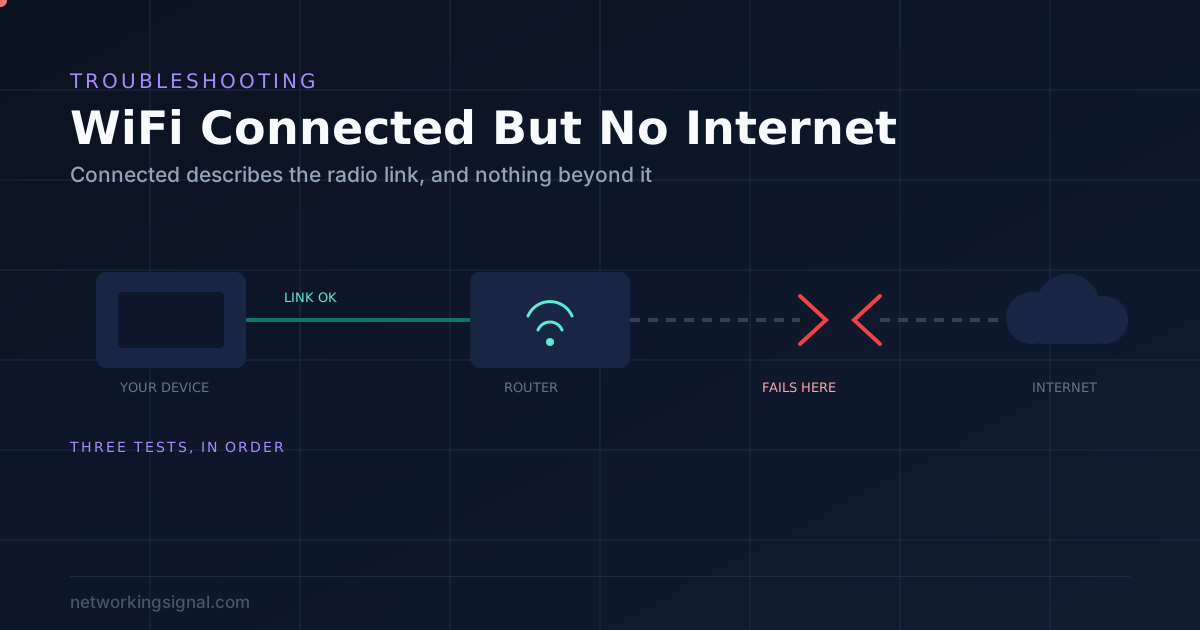
“Connected” and “internet” are two different things. Connected means your device has a working radio link to the router. It says nothing about whether the router can reach the outside world, or whether your device was given a usable address.
Three tests find the cause in under two minutes. Run them in this order:
1. Does another device work? If everything is offline, the fault is the router or your provider. If only one device is offline, the fault is on that device.
2. Ping 1.1.1.1. If that replies, your internet connection is fine and the problem is DNS.
3. Check your IP address. If it starts 169.254, your device never got an address from the router, and nothing will work until that is fixed.
Everything below is just what to do once you know which of the three it is.
Getting onto WiFi and getting onto the internet are separate steps, and your device reports only the first one honestly.
Joining the WiFi means your device and the router agreed on a password and established a radio link. That is a conversation between two pieces of equipment in your home. The internet is not involved at any point.
After that, three more things have to work, and each can fail independently:
Your device needs an address. The router hands one out over DHCP. No address, no traffic.
The router needs its own connection. Its link to your provider can be down while its WiFi keeps broadcasting perfectly.
Names need resolving. Your device turns names like google.com into IP addresses using DNS. If DNS fails, everything appears broken even though the connection is fine.
That is why the icon says connected. It is reporting the one part that worked.
Pick up a phone and try a website on it. This single step halves the problem.
Everything is offline. The fault is the router or your provider. Skip to the router section below.
Only one device is offline. The router is fine and something on that device is broken. Skip to the single device section.
People routinely spend an hour reconfiguring a laptop when every device in the house was offline. Ninety seconds here prevents that.
This separates a connection problem from a name resolution problem, and it is the single most useful test on this page.
Open a terminal or command prompt and run:
| System | Command |
|---|---|
| Windows | ping 1.1.1.1 |
| macOS or Linux | ping -c 4 1.1.1.1 |
Replies come back. Your internet connection is working. Traffic is leaving your house and coming back. The problem is almost certainly DNS, because you can reach an address but not translate a name into one.
Confirm it by running ping google.com. If the IP replies and the name does not, that is DNS, definitively.
Nothing comes back. Traffic is not reaching the internet at all. Move to test 3.
Find the address your device is actually using.
| System | Command |
|---|---|
| Windows | ipconfig |
| macOS or Linux | ifconfig or ip addr |
| Phone | WiFi settings, tap the network name |
Read the first two numbers:
192.168.x.x or 10.x.x.x means the router gave you a proper address. DHCP worked, so the fault is further along.
169.254.x.x is the important one. That is not a real address. It is a placeholder your own device invented after asking the router for an address and getting no reply. This is called APIPA, and it always means DHCP failed. Nothing will work until it is resolved.
No address at all means the adapter is not really connected, whatever the icon claims.

The router is fine as a WiFi transmitter and broken as an internet connection. Work through these in order.
Check the router’s own status lights. Most routers have an internet or WAN light. Green or white usually means connected; red, orange or off means it has lost its uplink. On a fibre connection specifically, a red LOS light means the line itself is down and no amount of restarting will help.
Check your provider’s status page before doing anything else. An outage explains everything and costs you nothing to rule out.
Restart in the right order. This matters more than people expect. Power off the modem and the router. Turn the modem on first and wait until its lights settle, usually two minutes. Only then turn on the router. Starting them together often leaves the router asking for an address before the modem is ready, and it does not always ask again.
Check for double NAT. If you have your own router plugged into a provider’s box that is also routing, both hand out addresses and both apply NAT. Symptoms are broken port forwarding, poor video calls and devices that cannot see each other. The fix is putting the provider’s box into bridge mode, which our home network setup guide covers per provider.
Check whether the bill was paid. Unglamorous and it happens. A suspended account usually leaves the local network working perfectly while blocking everything beyond it.
The router works. Something on that one device is wrong.
Forget the network and rejoin it. The most effective single fix, because it clears a stored profile that may have a stale address, an old gateway or a wrong security setting. On the device, forget the network, then reconnect with the password.
Release and renew the address. If you saw a 169.254 address, force the device to ask again:
| System | Command |
|---|---|
| Windows | ipconfig /release then ipconfig /renew |
| macOS | Network settings, TCP/IP, Renew DHCP Lease |
If it still comes back 169.254, the router’s DHCP pool may be full or switched off. A router handing out a small range can genuinely run out in a house full of smart devices.
Check the clock. This one is invisible and catches everybody. Secure sites validate certificates against the current date, so if your device’s clock is badly wrong, every HTTPS site fails while ping works perfectly. It looks exactly like no internet. Set date and time to automatic.
Turn off any VPN. A VPN client that has half disconnected leaves routes pointing at a tunnel that no longer exists. Disconnect it properly, and if that fails, quit the client entirely.
Check parental controls and schedules. If the router blocks that device on a timer, it will connect to WiFi normally and reach nothing. Worth checking on a child’s device that fails at the same time each evening. Our guide to routers with parental controls explains where these settings live.
Reset the network stack. The last resort on Windows, and it does work. Run netsh winsock reset and netsh int ip reset in an administrator command prompt, then restart. On a phone, use Reset Network Settings, which clears saved WiFi passwords.
You have a working internet connection and broken name resolution. Three things fix nearly all of it.
Flush the DNS cache. Your device stores recent lookups, and a stale or poisoned entry survives a reboot.
| System | Command |
|---|---|
| Windows | ipconfig /flushdns |
| macOS | sudo dscacheutil -flushcache; sudo killall -HUP mDNSResponder |
Change your DNS server. Provider DNS servers fail more often than people realise, and when they do, everything looks broken while the connection is fine. Set your device or router to Cloudflare at 1.1.1.1 and 1.0.0.1, or Google at 8.8.8.8 and 8.8.4.4.
Setting it on the router fixes every device at once. Setting it on one device is faster for testing.
Look for a captive portal. On hotel, café, airport or guest WiFi, you are connected but held behind a login page until you accept the terms. Open a browser and try http://neverssl.com, which is plain HTTP and will not be blocked by certificate errors, and the portal should appear.
| What you see | What it means | Where to go |
|---|---|---|
| All devices offline | Router or provider | Status page, then restart modem first |
| One device offline | That device | Forget and rejoin the network |
| Ping 1.1.1.1 replies | DNS failure | Flush cache, change DNS server |
| Address is 169.254.x.x | DHCP failed | Release and renew, check DHCP pool |
| Only HTTPS sites fail | Clock is wrong | Set date and time to automatic |
| Login page expected | Captive portal | Open http://neverssl.com |
| Router LOS light red | Fibre line down | Reseat fibre, then call provider |
If this happens repeatedly rather than once, the pattern usually points somewhere specific.
Always the same room. That is coverage, not a fault. The device is clinging to a signal too weak to carry traffic while still reporting connected. Our comparison of mesh, extenders and access points covers which of the three actually fixes it.
Always at the same time of day. A parental control schedule, or congestion on your provider’s network in peak hours.
Always after waking from sleep. A power saving setting on the network adapter. On Windows, open the adapter’s properties and disable the option that lets the computer turn the device off to save power.
Always when the house is busy. The router is running out of capacity. An older router with a weak processor drops connections under load even though its radio is fine.
Random and frequent on every device. That points at the router itself, and our guide on why WiFi keeps disconnecting goes deeper into the causes.
Because those are two different things. Connected means your device has a working radio link to the router, which does not involve the internet at all. The connection can then fail at three later points: your device never got an address, the router lost its own uplink, or DNS is not resolving names.
It means DHCP failed. Your device asked the router for an address, got no reply, and assigned itself a placeholder. It is called APIPA, and no internet traffic will work until the device gets a real address from the router.
Ping an IP address directly, such as 1.1.1.1. If it replies but websites still do not load, your connection works and only name resolution is broken, which is DNS. Confirm by pinging google.com, which will fail while the IP succeeds.
Power both off, then turn the modem on first and wait about two minutes for its lights to settle before turning on the router. Starting them together often leaves the router requesting an address before the modem is ready, and it does not always retry.
If secure sites fail while others work, check your device’s clock. HTTPS validates certificates against the current date, so a badly wrong clock makes every secure site fail while ping still works. Setting date and time to automatic fixes it.
It clears saved WiFi networks and their passwords, along with paired Bluetooth devices and any VPN configurations. Your files, photos and apps are untouched. Have your WiFi password to hand before you do it.
Run the three tests before changing any settings. Try another device to find out whether it is the network or just you. Ping 1.1.1.1 to find out whether it is DNS. Check your IP address for a 169.254 that means DHCP failed.
Those three answers point at exactly one section of this page, and each has two or three fixes behind it. Almost every case is a router that lost its uplink, a device that never got an address, or a DNS server that stopped answering.
If you find yourself here repeatedly and it is always the same room, stop troubleshooting. That is a coverage problem, and no amount of resetting will fix it.
Note: Networking Signal is a participant in the Amazon Services LLC Associates Program and may earn a commission on qualifying purchases made through product links elsewhere on this site, at no additional cost to you. There are no affiliate links on this page. Commands are given for current Windows, macOS and Linux releases; exact menu wording varies by version.
Hand-picked articles you might also find useful.
 Wireless
 Connecting to a WiFi network that is not your own without the password poses ethical and legal issues…
 Networking Gears
 The business access points worth deploying in 2026, from a $70 Omada unit to long range UniFi, plus…
 Wireless
 In this guide, I will walk you through the step-by-step process of setting up a WiFi repeater to…