
7 Best Modems for Xfinity in 2026 (Including Mid-Split Picks)
The best Xfinity-approved modems in 2026. The Motorola MB8611 at $130 suits most plans; if you want Xfinity's…
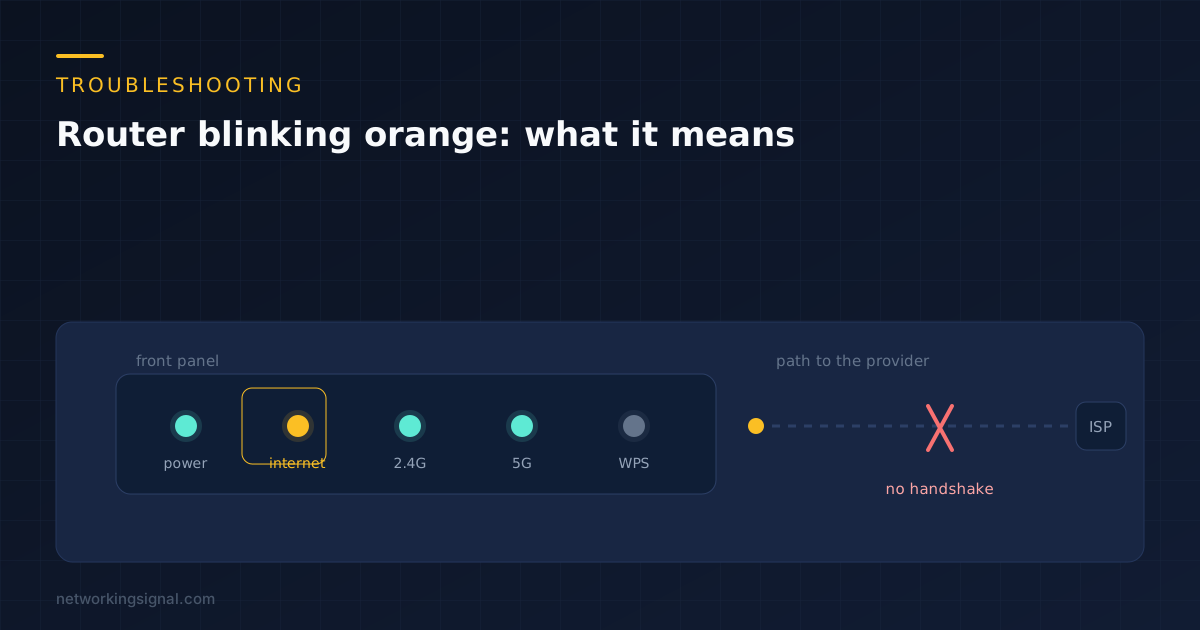
An orange or amber light on your router almost always means the same thing underneath the branding: the router has electrical link on its internet port, but it has not been given a working connection yet. The cable is fine. The negotiation is not finishing.
That distinction matters, because it rules out about half of what people try first. Reinstalling drivers, changing WiFi channels, resetting your laptop, none of it touches the part that is failing. The router is telling you it cannot get upstream, and everything on your side of it is irrelevant until that clears.
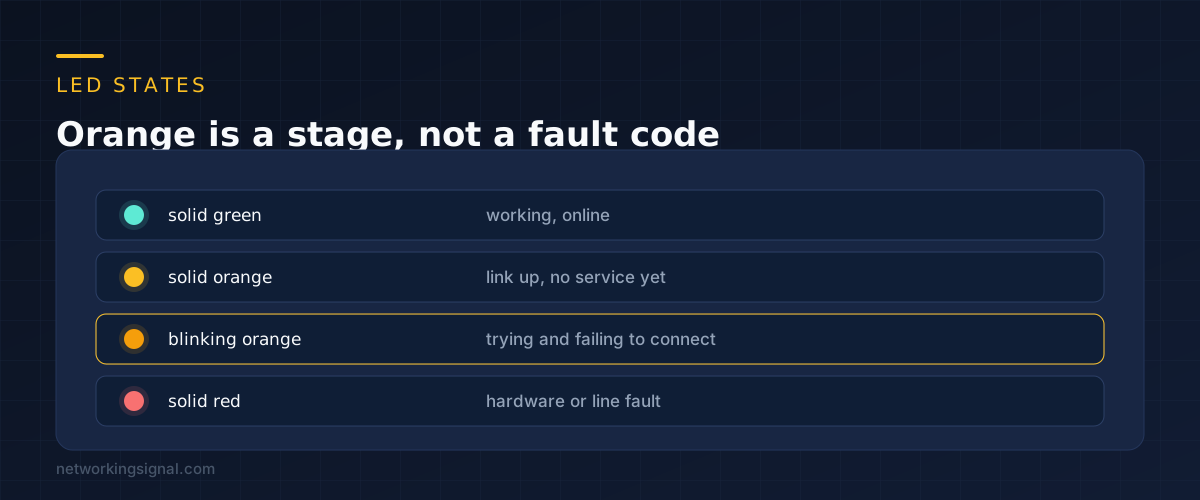
Every consumer router runs the same sequence when it powers up. It brings the physical port up, then asks the provider for an address, then authenticates, then reports success. The LED colour tracks how far it got.
Green means all four steps finished. Red usually means step one failed, so there is no signal on the line at all. Orange means step one worked and something after it did not.
Blinking orange is more specific than solid orange. Solid means the router has settled into a failed state and stopped. Blinking means it is still retrying, which is why waiting genuinely helps in a way that it does not when the light is red.
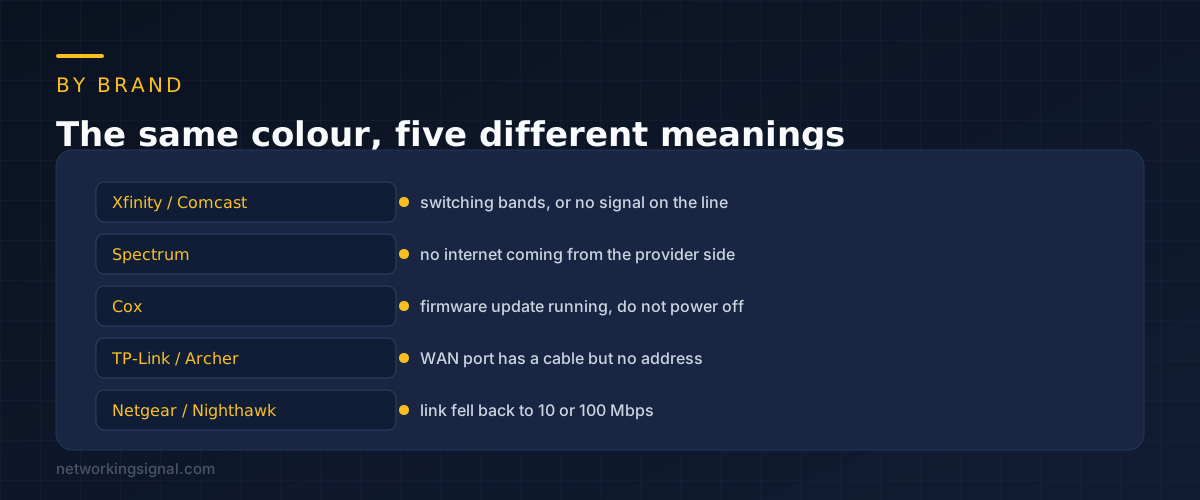
Manufacturers never agreed on this, so the same colour carries five different meanings.
Xfinity and Comcast gateways blink orange while they hunt for a downstream signal, and also while they move a device between the 2.4 GHz and 5 GHz bands. The second case clears itself in under a minute.
Spectrum boxes use amber for a plain lack of internet from the provider side. If the light is amber and the outage map is clean, the line into the property is the next thing to look at.
Cox is the one worth knowing about. Amber often means a firmware update is running. Pulling the power during that window can leave the modem in a state that needs a provisioning call to fix. If you have a Cox box showing amber and you have not touched anything, leave it alone for fifteen minutes.
TP-Link Archer routers turn the internet LED orange when the WAN port has a cable and link, but no IP address has been issued. That points at PPPoE credentials or a DHCP failure rather than the cable.
Netgear Nighthawk uses amber for something else entirely. It can mean the WAN port negotiated at 10 or 100 Mbps instead of gigabit. Your internet still works, just capped. A damaged cable or a bent pin in the connector causes this more often than a faulty port.
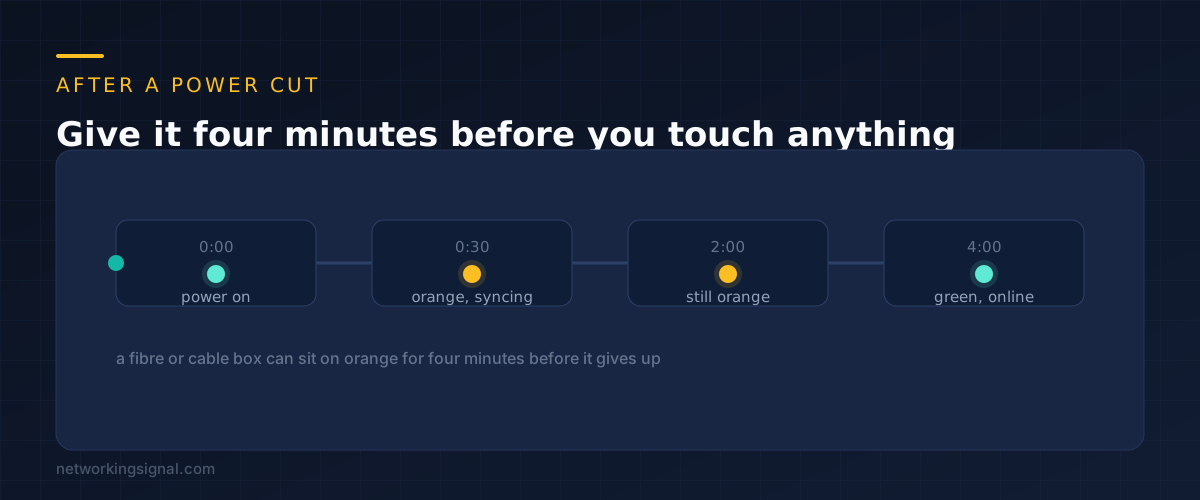
This is the most common reason people end up searching for an amber light, and most of the time nothing is broken.
A cable modem coming back from a power cut has to scan for a downstream channel, lock onto it, range the upstream, and then request its configuration file from the provider. On a busy segment where every house on the street rebooted at the same moment, that can take four minutes. Fibre units are usually quicker but still need thirty to ninety seconds.
The trap is impatience. Two minutes in, the light is still amber, so people pull the plug and start again. The counter resets and they never get past the same point. If the power came back recently, set a timer for five minutes and leave the room.
One thing does help. If several devices came back at once and your router is also feeding a switch or a mesh node, unplug those for the first two minutes so the router is doing one job.
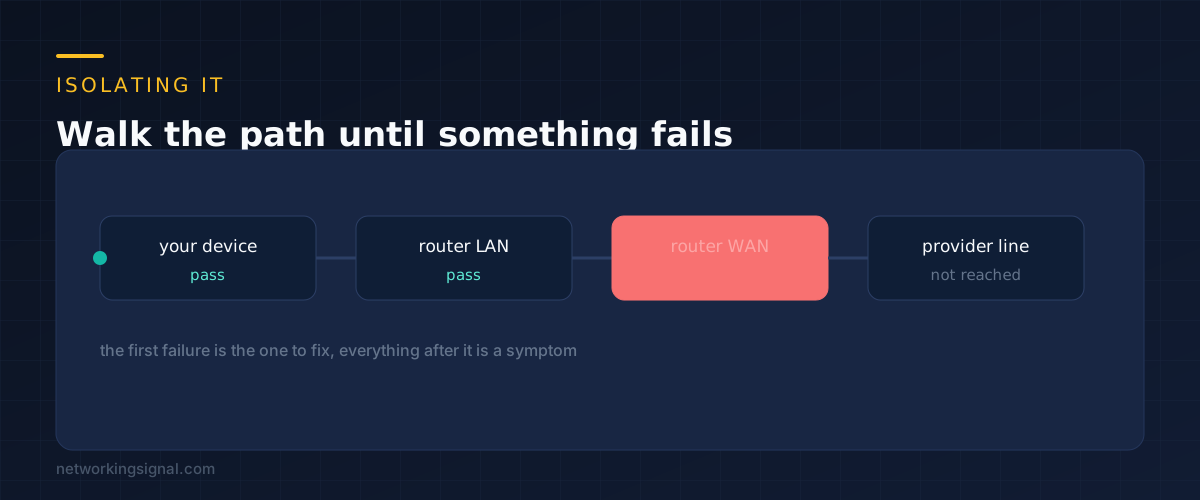
You can narrow this down in about three minutes without any tools beyond the browser you already have open.
Start by opening the router admin page, usually at 192.168.0.1 or 192.168.1.1. If it loads, the router itself is healthy and the problem is upstream of it. If it does not load, the problem is between your device and the router, which is a different fault.
Inside the admin page, find the status or WAN screen. You are looking for the IP address the provider has issued. Three outcomes tell you three different things.
If you are on fibre, check the ONT separately. It is the small box the fibre enters, often mounted on a wall away from the router. A red LOS light there means the optical signal is gone before it ever reaches your router, and nothing you do at the router will help. We covered that case in what a red LOS light means on a fibre router.
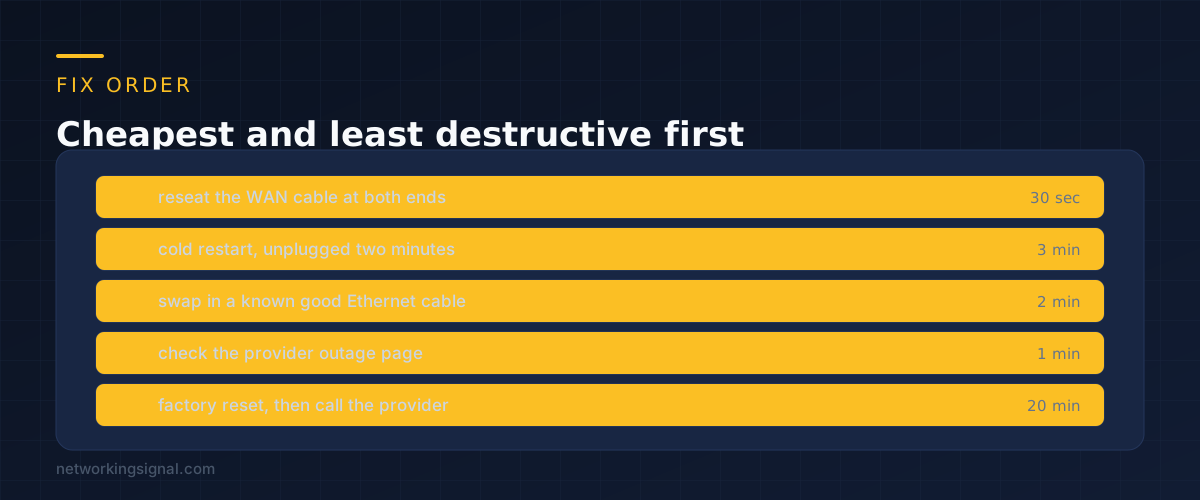
Reseat the cable going into the internet or WAN port. Both ends, firmly, until the clip clicks. Amber specifically means partial link, and a connector sitting half seated is exactly how you get partial link. This costs thirty seconds and fixes it more often than anything else on the list.
Do a cold restart properly. Unplug the router at the wall, wait two full minutes, plug it back in. The wait matters because it forces the provider side to drop your old session. A ten second restart often reconnects you to the same stuck session. If you have a separate modem and router, power the modem first and let it settle before the router goes on.
Swap the Ethernet cable. Use one you know works from another device. Cable failures are unglamorous but common, particularly where a cable has been pinched behind furniture or run under a door. This is also the fix for a Netgear box that has fallen back to 100 Mbps.
Check the provider outage page. Do it from mobile data. Most providers also have a text or app based status check that tells you about work in your specific street rather than the region.
Factory reset last. This wipes your WiFi name, password and any port forwarding you set up, so have your PPPoE username and password to hand before you press anything. On most boxes it is a pinhole held for ten seconds while powered on. If amber persists after a factory reset, the problem is not configuration and the call to the provider is justified.
When you do call, give them three specific things: that the internet LED is amber rather than red, what the WAN status page shows for an IP address, and that a factory reset did not change it. That combination skips most of the scripted questions and usually gets a line test run while you are still on the call.
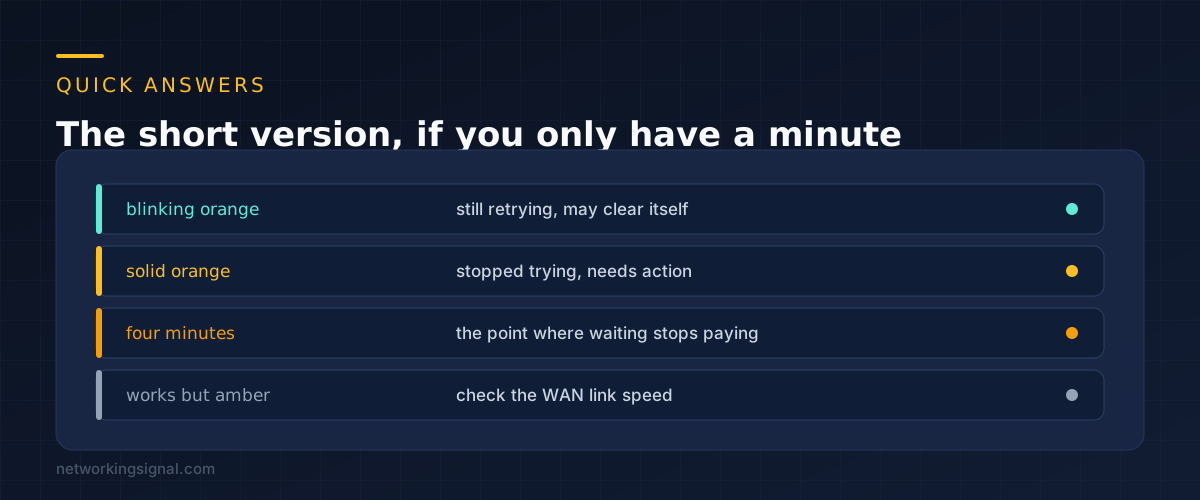
Four minutes from power on. Cable modems ranging on a congested segment genuinely take that long. After four minutes with no change, start working through the fix list.
No, it is better. Blinking means the router is still retrying. Solid means it has given up and settled into a failed state. A blinking light has a reasonable chance of clearing on its own.
On a Netgear router that usually means the WAN port linked at 100 Mbps instead of gigabit, so you are capped well below what you pay for. Change the cable. On other brands it is often a stale LED state that clears on the next restart.
No. The internet LED reports the connection between your router and your provider, which happens before any device joins the WiFi. A wrong WiFi password stops your phone connecting to the router, not the router connecting to the provider.
Rarely. If the same amber state survives a factory reset, and a second device connected directly to the modem also fails, then hardware becomes likely. Try that test before buying anything.
If you reach the point of replacing hardware, our guide to what the Ethernet port lights mean is worth reading first, because a link light that never reaches gigabit points at the cable rather than the router.
Hand-picked articles you might also find useful.
 Internet & ISP
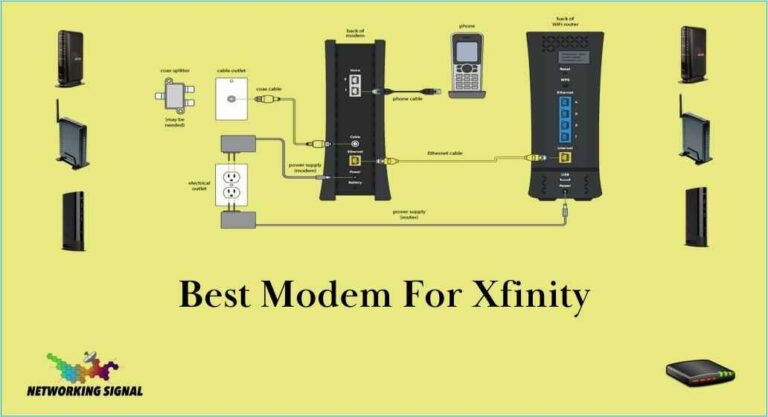
 The best Xfinity-approved modems in 2026. The Motorola MB8611 at $130 suits most plans; if you want Xfinity's…
 Internet & ISP
 The best DNS servers for PS5 in 2026, with the setup steps. Changing DNS does not reduce in…
 Internet & ISP
 Xfinity is one of the largest cable and internet service providers in the United States, offering a wide…