
Is 1 Gbps (1000 Mbps) Fast? — Gigabit Internet Explained
Is 1 Gbps (gigabit) internet fast? Yes — it's among the fastest available. Learn what you can do…
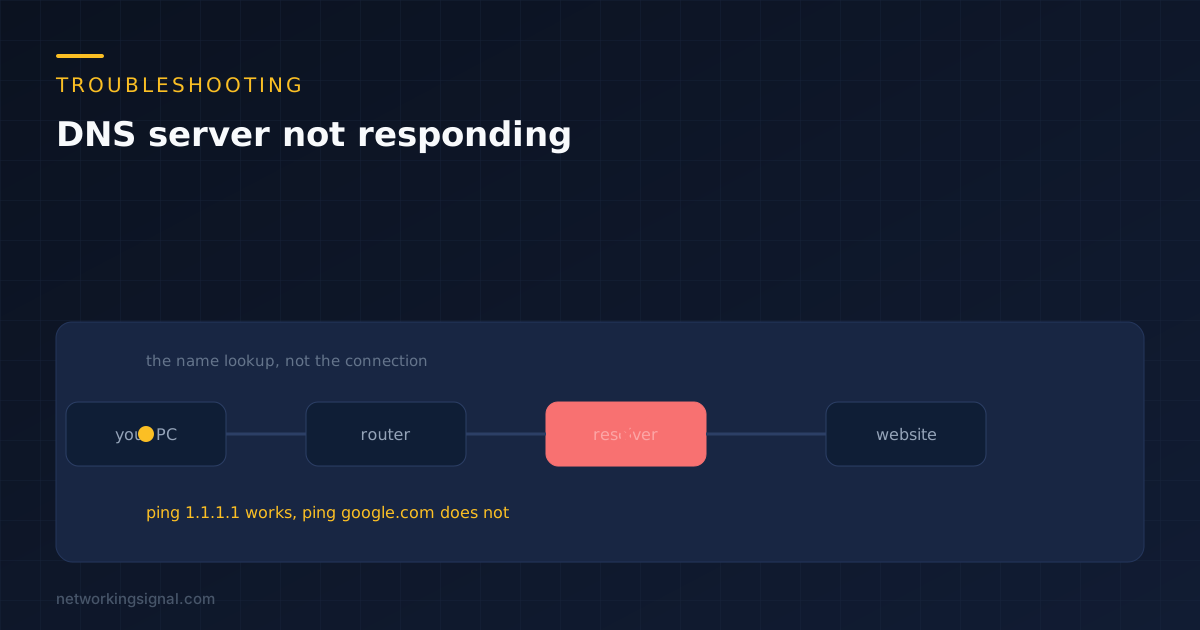
DNS server not responding is what Windows reports when the network troubleshooter cannot get an answer out of the DNS server your device was given. It sounds like the internet is down. Usually it is not, and the connection underneath is working perfectly.
That matters because it changes what you should try. Restarting the laptop, reinstalling the network adapter and resetting Windows are the three things people reach for, and none of them touches the part that actually failed.
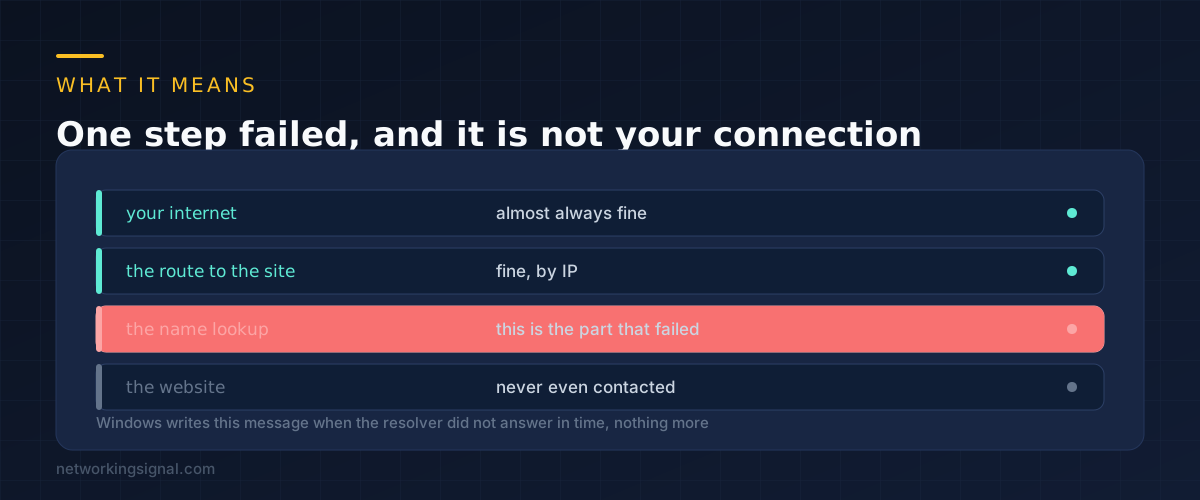
Every time you type a web address, your device has to turn that name into a number before it can send a single packet. That translation is done by a DNS resolver, usually one your router or provider handed you automatically.
When the resolver does not answer within a few seconds, Windows gives up and reports that the DNS server is not responding. Your network card is fine. Your cable or WiFi link is fine. The route out to the internet is fine. One lookup step timed out.
This is why a page sometimes loads on your phone over mobile data at the same moment it fails on the laptop. Different device, different resolver.
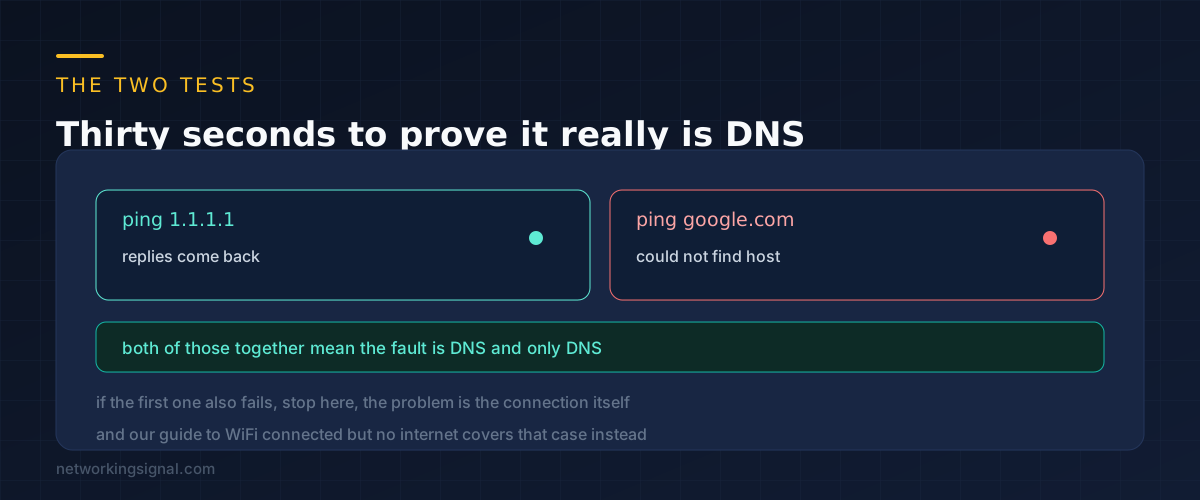
Open a command prompt or terminal and run two commands.
ping 1.1.1.1
ping google.com
If the first one gets replies and the second one fails with something like “could not find host”, you have confirmed it. Packets are leaving your machine and coming back, so the connection works. Only the name lookup is broken.
If the first command also fails, stop reading. The problem is the connection itself rather than DNS, and our guide to WiFi connected but no internet covers that case properly.
There is a second test worth knowing, because it tells you whether your own resolver is the broken part.
nslookup google.com 1.1.1.1That asks Cloudflare directly instead of whatever your device was given. If it returns an address, the internet path to a working resolver is fine and the one you were assigned is the problem. That single result decides most of what follows.
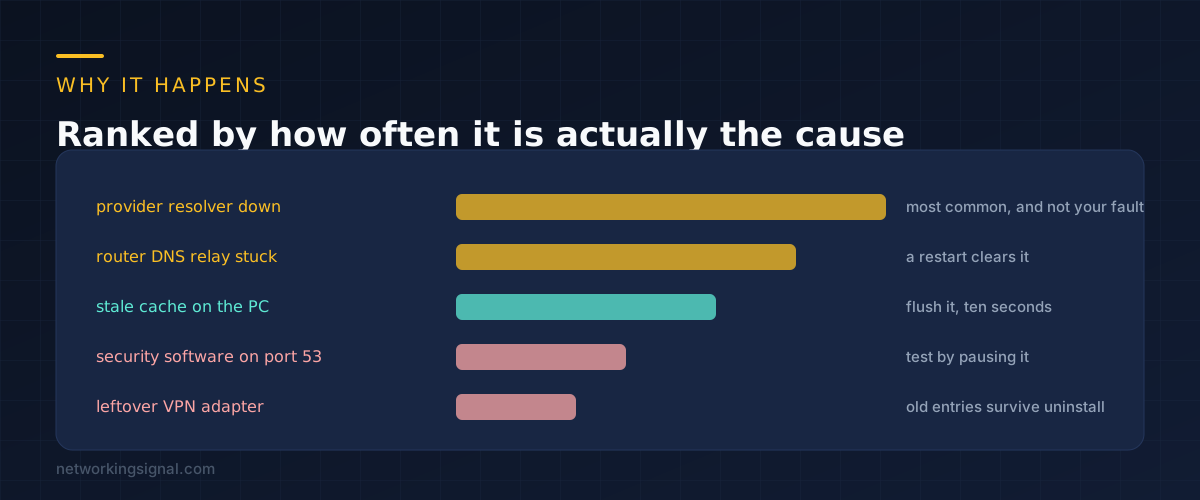
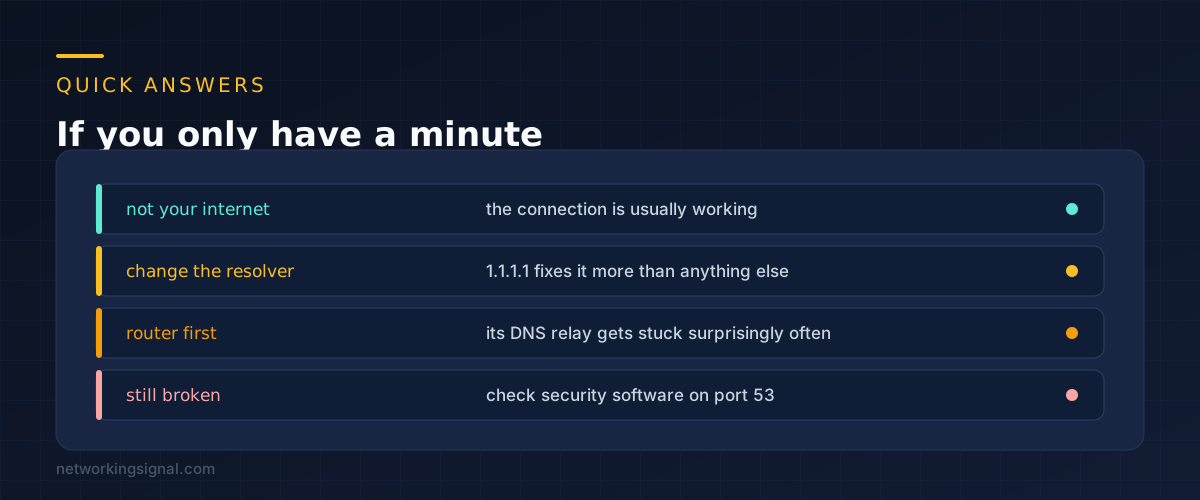
The provider resolver is down or overloaded. Most people never choose a DNS server, so they use whatever their internet provider runs. Those servers have bad days. When one is struggling, every device in the house shows this message at once, which is the clue.
The router DNS relay is stuck. Most home routers do not hand out the provider addresses directly. They advertise themselves and forward the queries on. That small relay process gets wedged, especially on cheaper hardware after weeks of uptime, and a restart clears it.
A stale cache on the machine. Your device remembers recent answers, including failures. If something went wrong while a record was being fetched, the bad result can persist after the underlying cause is gone.
Security software filtering port 53. Antivirus suites with web protection inspect DNS traffic. When that component misbehaves after an update, DNS stops and nothing else does, which makes it hard to spot.
A leftover VPN adapter. Uninstalling a VPN often leaves a virtual adapter behind with its own DNS entries and a higher priority than your real connection. Queries go to a server that no longer exists.
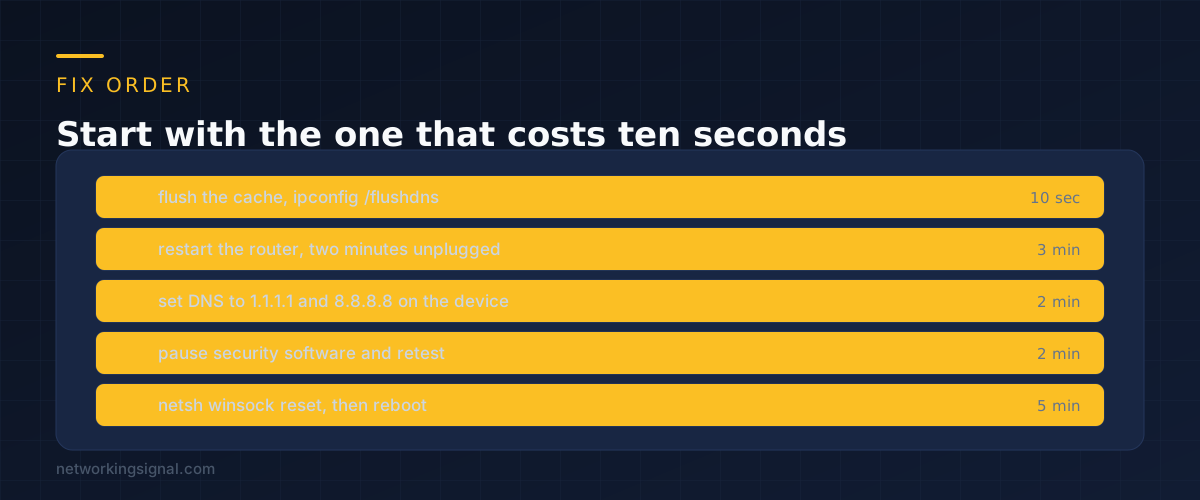
Flush the cache. On Windows, open a command prompt and run the flush command. On macOS the equivalent clears the resolver cache and restarts the responder daemon.
ipconfig /flushdnssudo dscacheutil -flushcache
sudo killall -HUP mDNSResponderRestart the router. Unplug it at the wall for two minutes. This clears the stuck relay described above and is the fix whenever every device in the house is affected rather than one.
Set a public resolver on the device. This is the step that fixes it most often. In your network adapter settings, replace automatic DNS with two addresses you choose. Cloudflare is 1.1.1.1 with 1.0.0.1 as the second. Google is 8.8.8.8 with 8.8.4.4.
Setting it on the device rather than the router is deliberate. It bypasses the router relay completely, so if the relay was the problem you have just stepped around it. If that fixes things, you can later set the same addresses on the router so every device benefits.
Pause security software and retest. Turn off the web or network protection component for two minutes, not the whole suite if you can avoid it. If DNS starts working, you have found it, and the fix is a reinstall or an exclusion rather than leaving protection off.
Reset the network stack. Last because it clears settings you may have to put back. Run both commands as administrator and reboot.
netsh winsock reset
netsh int ip reset
If a leftover VPN adapter is the cause, this is also the point where it usually gets cleaned up, though you may need to remove the adapter by hand in Device Manager with hidden devices shown.
Yes. You are choosing which company answers your name lookups, nothing more. Cloudflare and Google both run these services publicly and they are frequently faster than a provider resolver. The trade is that whoever runs the resolver can see which domains you look up, which is worth knowing either way since your provider could already see that.
If the phone is on mobile data it is using a completely different resolver, so that tells you nothing. If the phone is on the same WiFi and works fine, the fault is specific to the laptop, which points at its cache, its adapter settings or its security software rather than the router.
It is a common suggestion and usually the wrong one. It can mask a misconfigured IPv6 DNS entry, but it hides the fault instead of fixing it and costs you IPv6 connectivity. Try it only as a diagnostic, and turn it back on afterwards.
Recurring failure points at the router relay or the provider rather than your machine, because a one time local glitch does not repeat on a schedule. Set a public resolver on the router itself so every device stops depending on the relay.
Check a second device before doing anything else. All devices failing means the router or the provider. One device failing means that device, which cuts the list of causes in half immediately.
If the problem turns out to be broader than DNS, our guide to an orange router light covers the case where the router never got a working connection at all.
Can you explain this topic to someone else in 30 seconds? If not, re-read the key takeaways above.
The core concepts in the takeaways box above. Bookmark this page and come back when you need a refresher.
Hand-picked articles you might also find useful.
 Internet & ISP
 Is 1 Gbps (gigabit) internet fast? Yes — it's among the fastest available. Learn what you can do…
 Internet & ISP
 In today's digital age, a reliable and high- speed internet connection is essential for both work and leisure.…
 Internet & ISP
 An honest review of Verizon 5G Home Internet in 2026, covering real speeds, the price lock, and who…