
How to Fix Packet Loss? ( Cause and Prevention )
Packet loss refers to the failure of data packets to reach their intended destination when being transmitted from…
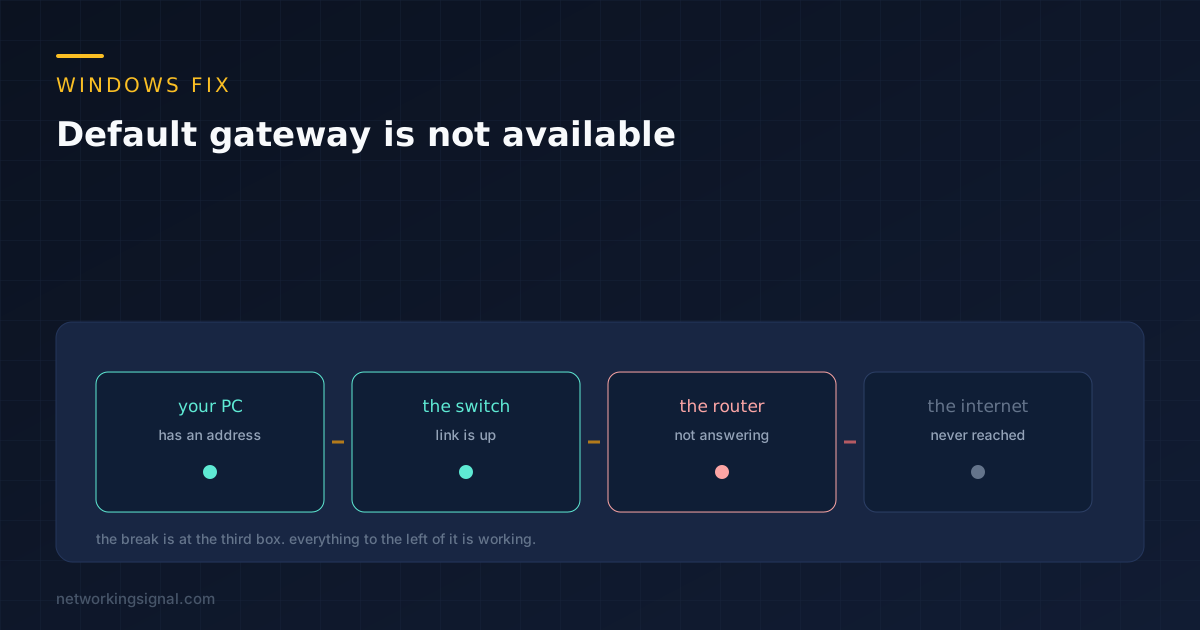
Default gateway is not available is what the Windows network troubleshooter reports when your PC cannot reach the router at its own address. The internet is usually fine. The router is usually fine. The network adapter in your machine has stopped answering, and on a laptop the reason is almost always power saving.
That matters because the message reads like an internet outage and sends people to the router first. If every other device in the house is still online, the router is not the problem.
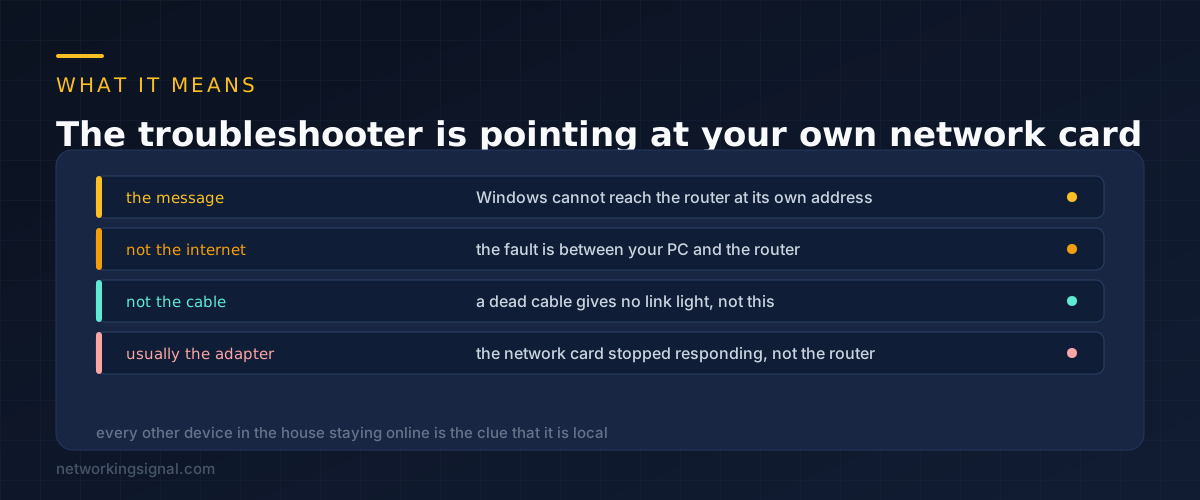
Your default gateway is the router. Every packet destined for anywhere outside your own network goes to it first, which is why Windows checks it before anything else.
When the troubleshooter reports that the gateway is not available, it has sent traffic to the router’s address and received nothing back. That is a narrow finding. It rules out the internet, because Windows never got far enough to test it, and it rules out a dead cable, because a dead cable produces no link at all and a different message.
What is left is the path between your machine and the router, and almost all of that path is inside your machine. The network adapter, its driver, and whatever Windows has done to its power state.
The quickest confirmation is another device. If a phone on the same WiFi is browsing normally while the laptop shows this message, the fault is on the laptop and nothing you do to the router will change it.
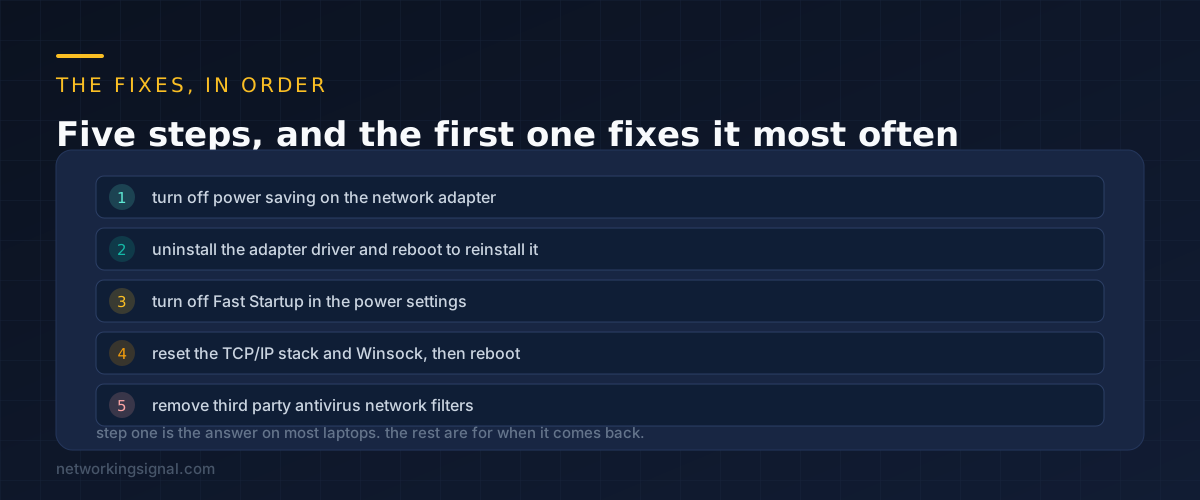
Turn off power saving on the adapter. Open Device Manager, expand Network adapters, right click yours, Properties, then the Power Management tab. Untick “Allow the computer to turn off this device to save power”. Do this for the wireless adapter and the wired one.
Windows powers the adapter down to save battery and sometimes fails to wake it cleanly. The machine stays on, the adapter is asleep, and the gateway becomes unreachable. This single checkbox is the fix for a large share of these reports.
Uninstall the driver rather than updating it. In Device Manager, right click the adapter and choose Uninstall device. Leave the box about deleting the driver software unticked, then reboot. Windows reinstalls a clean copy on startup.
Choosing Update driver usually reports that the best driver is already installed and does nothing. Uninstalling forces the rebuild, which is what actually clears a corrupted driver state.
Turn off Fast Startup. Control Panel, Power Options, Choose what the power buttons do, Change settings that are currently unavailable, then untick Turn on fast startup.
Fast Startup is not a real shutdown. Windows hibernates the kernel and restores it next time, which means it also restores the adapter state, including a broken one. If your fault returns after every shutdown but a Restart clears it, this is why.
Reset the network stack. Open Command Prompt as administrator and run these, then reboot.
netsh int ip reset
netsh winsock reset
ipconfig /release
ipconfig /renew
ipconfig /flushdns
This clears a corrupted TCP/IP configuration and any stale DHCP lease. It also resets some settings you may have changed deliberately, which is why it sits at step four rather than step one.
Remove third party security network filters. McAfee, Norton and some VPN clients install filter drivers that sit between Windows and the adapter. When one of those breaks after an update, this is exactly the symptom. Uninstall the suite properly using the vendor’s own removal tool, because a normal uninstall often leaves the filter behind.
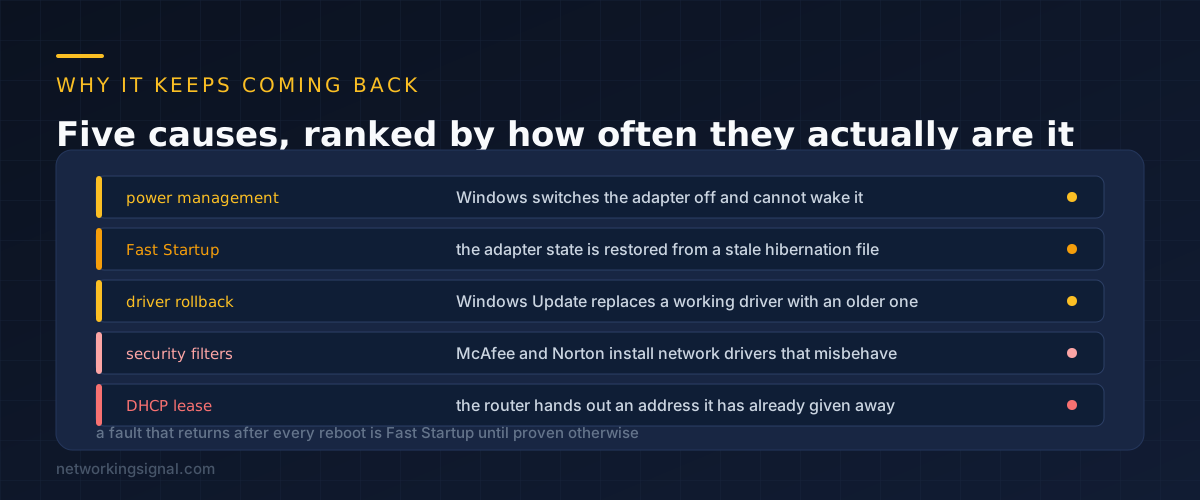
Fixing it once and having it return a week later is the common experience, and the repeat tells you which cause you actually have.
If it returns after every shutdown but a restart clears it, that is Fast Startup. A Restart performs a genuine reboot while Shut Down does not, so the difference between the two is the diagnosis.
If it returns after the laptop sleeps, that is adapter power management, and possibly the USB power settings too if you are using a dock or a USB Ethernet adapter.
If it returns after a Windows Update, Windows replaced your working driver with its own. Reinstall the manufacturer’s driver, then set Windows to stop installing device drivers automatically through the Device installation settings.
If it happens at the same time each day, suspect a DHCP lease expiring and being renewed badly. Check the router for two devices holding the same address, and give this machine a DHCP reservation so it always gets the same one.
If it happens to several devices at once, then it is not the adapter after all, and the router’s DHCP server is the place to look.
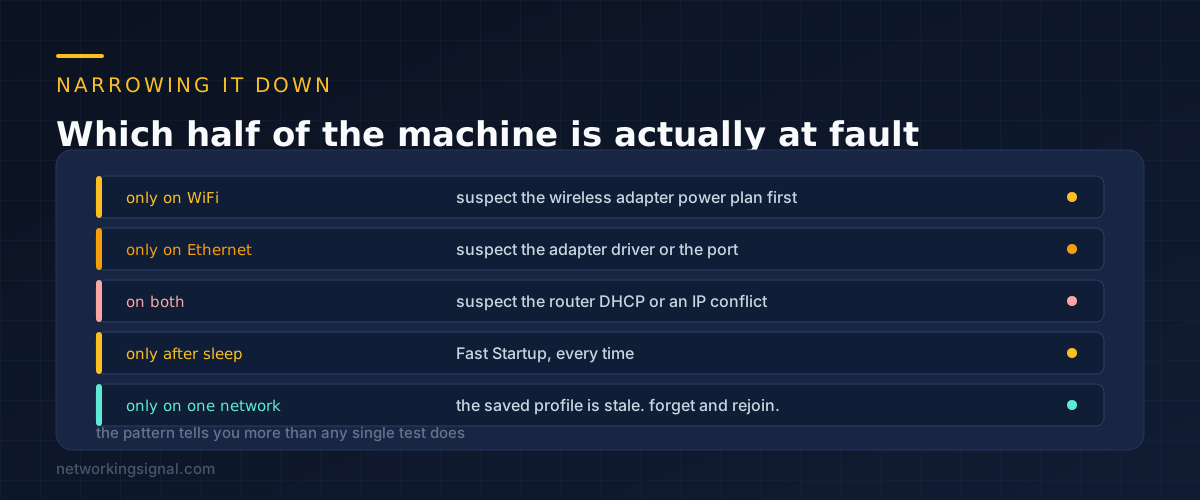
Before working through the list, notice which conditions produce the fault. It usually cuts the possibilities in half.
WiFi fails but Ethernet works. The wireless adapter specifically. Start with its power management, then its driver. On laptops also check the power plan: under Advanced settings, Wireless Adapter Settings, set Power Saving Mode to Maximum Performance.
Ethernet fails but WiFi works. The wired adapter or the port. Try a different port on the router and a known good cable before assuming the driver, because it costs thirty seconds.
Both fail together. The adapters are unlikely to break simultaneously, so look outward: an IP conflict, the router’s DHCP server, or a security suite filtering both.
Only on one particular network. The saved profile has gone stale. Forget the network in Windows settings and join it again from scratch.
There is one useful test worth knowing. Set a static IP temporarily, using an address outside your router’s DHCP range with the router as the gateway. If everything works on a static address, the fault is in DHCP rather than the adapter. Set it back to automatic afterwards, because a static address is a diagnostic and not a fix.
If you get as far as testing addresses, our guide to how DHCP hands out addresses explains what should be happening.
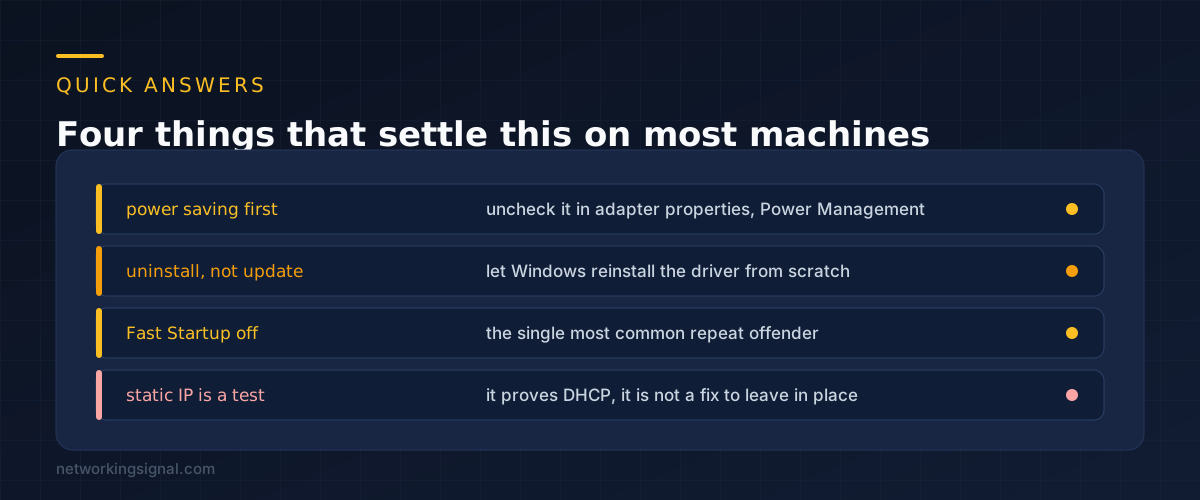
A restart reinitialises the adapter and requests a fresh address, which clears the symptom without clearing the cause. If a restart is your routine, the underlying problem is still there and one of the five fixes above will stop it returning.
Check a second device on the same network. If the phone and the tablet are fine, it is the PC. If everything in the house fails at once, restart the router and look at its DHCP settings. This one check saves more time than anything else here.
No. It works, which is why people are tempted, but it hides a DHCP problem rather than solving it and creates a conflict the day something else is given the same address. If you want a fixed address, set a DHCP reservation on the router instead so the router stays in charge of who has what.
The wording is Windows specific, because the message comes from its troubleshooter. The underlying fault, a machine that cannot reach its own gateway, happens on any operating system. It is more common on Windows because Fast Startup and aggressive adapter power management are Windows features.
Yes, and get it from the laptop maker rather than the chipset vendor. Dell, HP and Lenovo ship drivers tuned for their own hardware, and a generic Intel or Realtek driver sometimes behaves differently on a specific machine. Install it after uninstalling the existing one rather than over the top.
Rarely, but a partially damaged cable can. If the link negotiates but drops packets, Windows may see the gateway as unreachable while the port light stays on. Swapping the cable takes thirty seconds and rules it out, which is worth doing before reinstalling anything.
If the light on the router itself is also wrong, start there instead, using our guide to what an orange router light means.
Can you explain this topic to someone else in 30 seconds? If not, re-read the key takeaways above.
The core concepts in the takeaways box above. Bookmark this page and come back when you need a refresher.
Hand-picked articles you might also find useful.
 Routing & Switching
 Packet loss refers to the failure of data packets to reach their intended destination when being transmitted from…
 Routing & Switching
 A network is two or more devices linked so they can exchange data. Here are the network types…
 Routing & Switching
 A home lab server can be a great resource for the tech-savvy individual. It is not only useful…