
What are Wireless Access Points Waps? Detail Explained
What is Wireless Access Point ? Wireless Access Points (WAPs) are devices that allow you to connect to…
In this digital age, WiFi has become an essential part of our lives. We rely on it for work, entertainment, and staying connected with our loved ones. Sharing WiFi passwords should be a seamless process, enabling quick and easy access to the internet for your guests.
A WiFi Password is a security password used to protect a wireless network from unauthorized access. It is usually composed of 8 to 63 characters and may include numbers, symbols, and upper- and lower-case letters.
If you’d like to share your WiFi password with friends, family members, or guests, here are a few ways to do it. Let’s explore different methods to achieve this.

You Can share your WiFi Password in the following ways:
For this, you can tell your guests your password orally or write it down on a piece of paper. However, this method is not considered secure because anyone can overhear the password or find the written password in your home.
Using a QR code is the most secure way of sharing your WiFi password. You can generate a QR code containing your WiFi password and share it with your guests, who can then scan the QR code to connect to your network.
Follow these steps:
Various apps are available that allow you to securely share your WiFi passwords with others. These apps work by allowing you to share your WiFi password with others who also have the app installed.
For share sharing a WiFi Password on Windows, Android, iPhone, iPhone to iPhone, and iPhone to Android, You can read our comprehensive guide on How to Share WiFi Password.
Here are the steps to share your WiFi password on Windows:
1. Type “Network and Sharing Center” in the Windows search bar and open it.
2. Click on the name of your WiFi connection from the list of available networks.
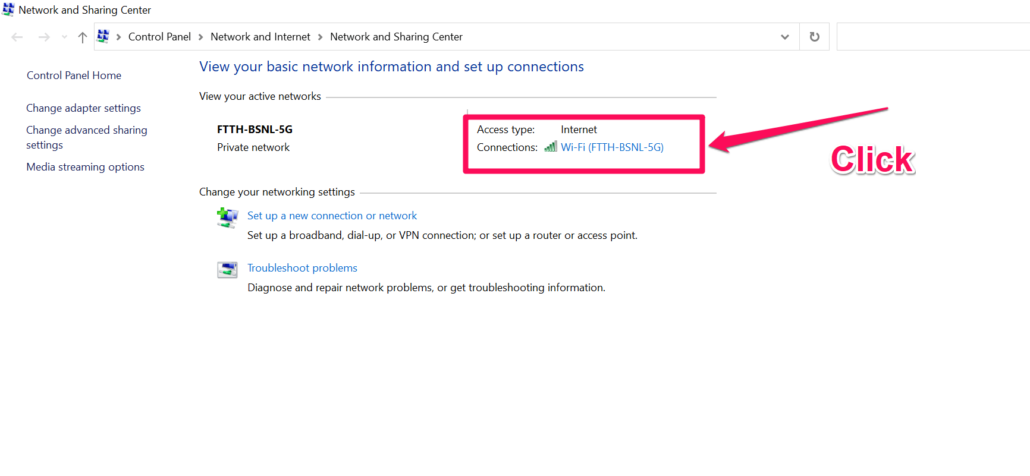
3. Under the General tab, click “Wireless Properties” to access your network settings.

4. Select the “Security” tab and click the “Show Characters” checkbox to reveal your WiFi password.

5. Copy the password and share it with others who need access to your network.
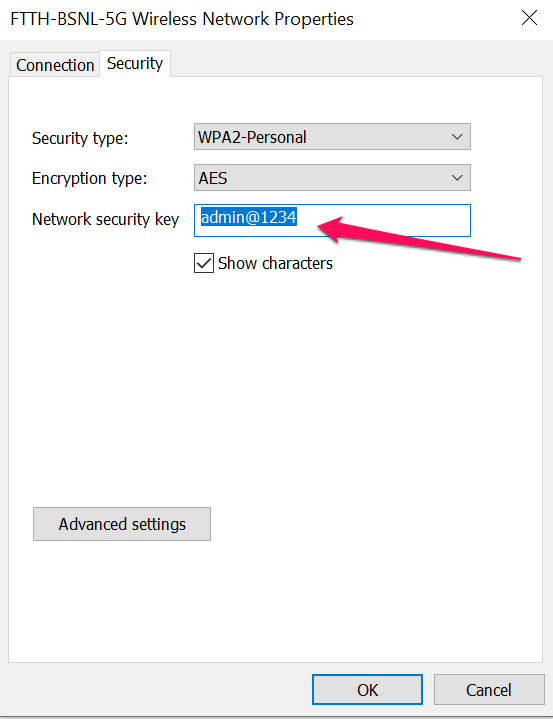
By following the steps above, you can easily share your WiFi password on Windows. Remember to always use a secure method when sharing your WiFi password with others.
Here are the steps to share your WiFi password on Android:
1. Go to the Settings app and tap “Connections”.
2. Tap “Wi-Fi” and then select the network you want to share.
3. Tap the three dots icon at the top right of the screen and select “Share” from the menu.
4. Select the method by which you want to share your WiFi password.
5. Enter the necessary information and then tap “Share” to send out your WiFi password.
By following the steps above, you can easily share your WiFi password on Android.
Here are the steps to share your WiFi password on your iPhone:
1. Go to the Settings app and tap “Wi-Fi”.
2. Tap the blue circle next to your current Wi-Fi network, then tap “Share Password”.
3. Select the method by which you want to share your WiFi password.
4. Enter the necessary information and then tap “Share” to send out your WiFi password.
These are the steps to share your WiFi password on your iPhone. Following the steps above, you can easily share your WiFi password with friends or guests.
For iPhone-to-iPhone sharing of WiFi passwords, you can use the AirDrop feature on your devices. Here are the steps:
1. Unlock both devices and make sure they’re within 10 meters of each other.
2. On the device with the password you want to share, open Settings > Wi-Fi and tap the blue circle next to your current Wi-Fi network.
3. Tap “Share Password” and then select the AirDrop option.
4. On the other device, tap “Accept” when prompted to join the network with the shared password.
With the help of these steps, you can easily share your WiFi password from iPhone to iPhone.
For iPhone-to-Android sharing of WiFi passwords, you can use the QR code feature. Here are the steps:
1. On the device with the password you want to share, open Settings > Wi-Fi and tap the blue circle next to your current Wi-Fi network.
2. Tap “Share Password” and then select the “QR Code” option.
3. On the other device, open the camera app and scan the QR code that appears on your iPhone screen. This will connect you to the WiFi network with the shared password.
This is the easiest way to share your WiFi password from iPhone to Android. By following the steps above, you can easily and securely share your WiFi passwords with others.
It is important to ensure the security of your WiFi password when sharing it with others. Here are some tips to help you do this:
Sharing WiFi passwords should be a hassle-free process to provide convenient internet access to your guests.
Whether it’s using QR codes, built-in features on devices, or third-party apps, there are multiple ways to simplify this task.
Remember to prioritize security while sharing passwords and troubleshoot any issues that may arise.
Hand-picked articles you might also find useful.
 Wireless
 What is Wireless Access Point ? Wireless Access Points (WAPs) are devices that allow you to connect to…
 Wireless
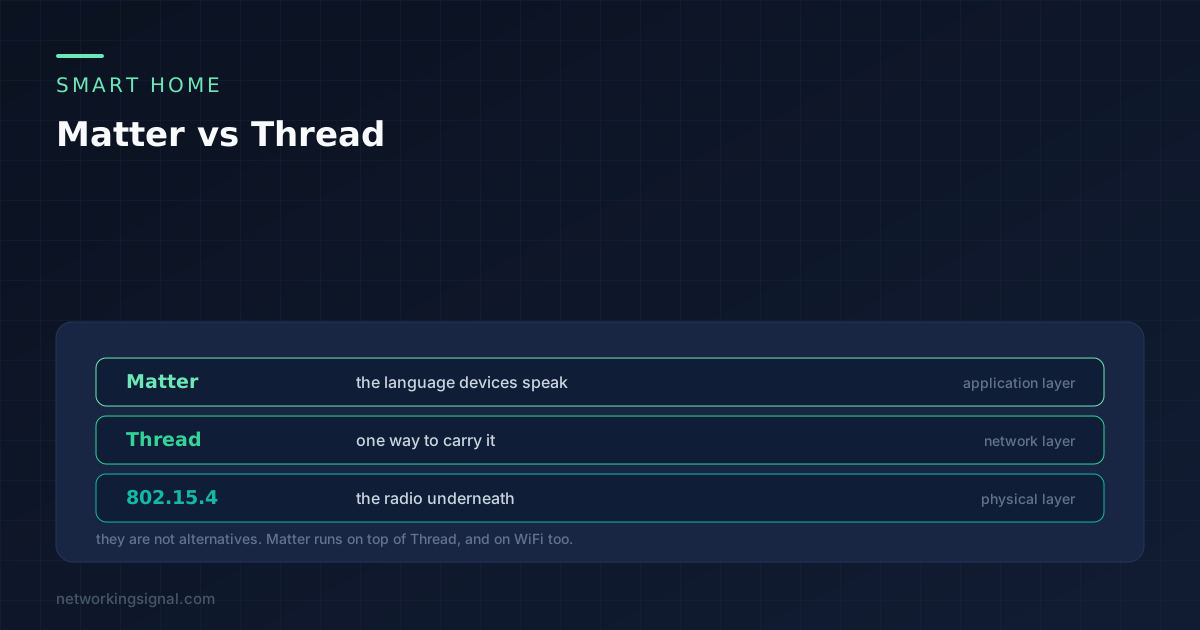
 Matter is the language, Thread is one of the roads it travels on. What each layer does, what…
 Wireless
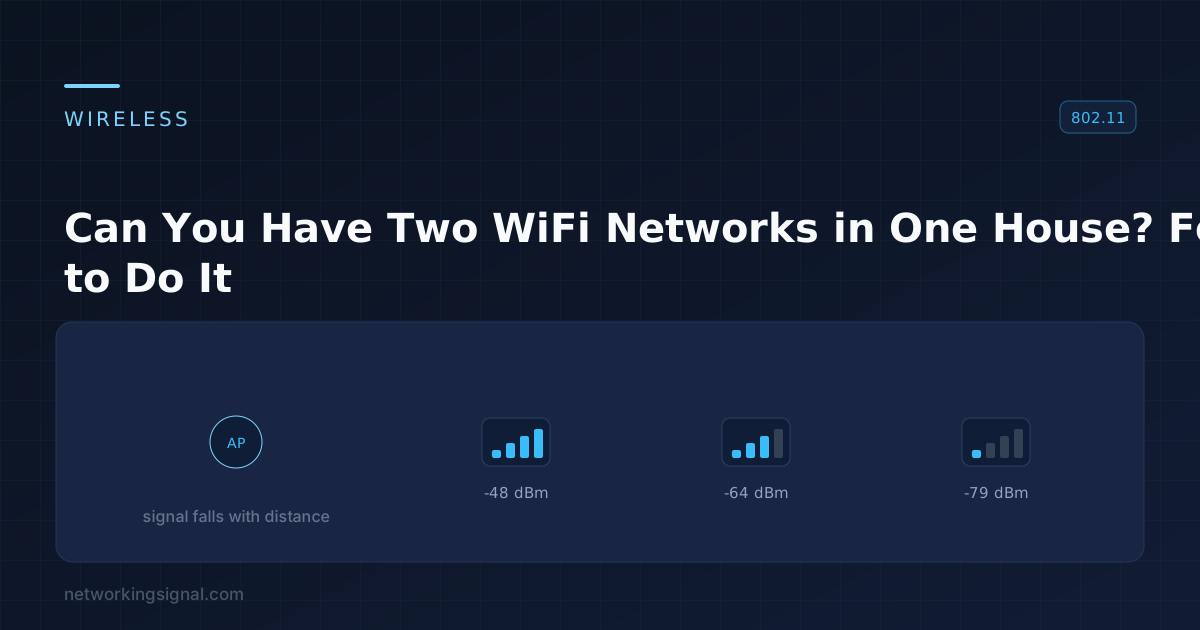
 Two WiFi networks in one house works, and there are four ways to do it. Which method suits…