
6 Best Outdoor WiFi Extenders in 2026 (Access Points Compared)
The best outdoor WiFi extenders for 2026. The TP-Link EAP650-Outdoor at $134.99 is the pick. Includes why you…
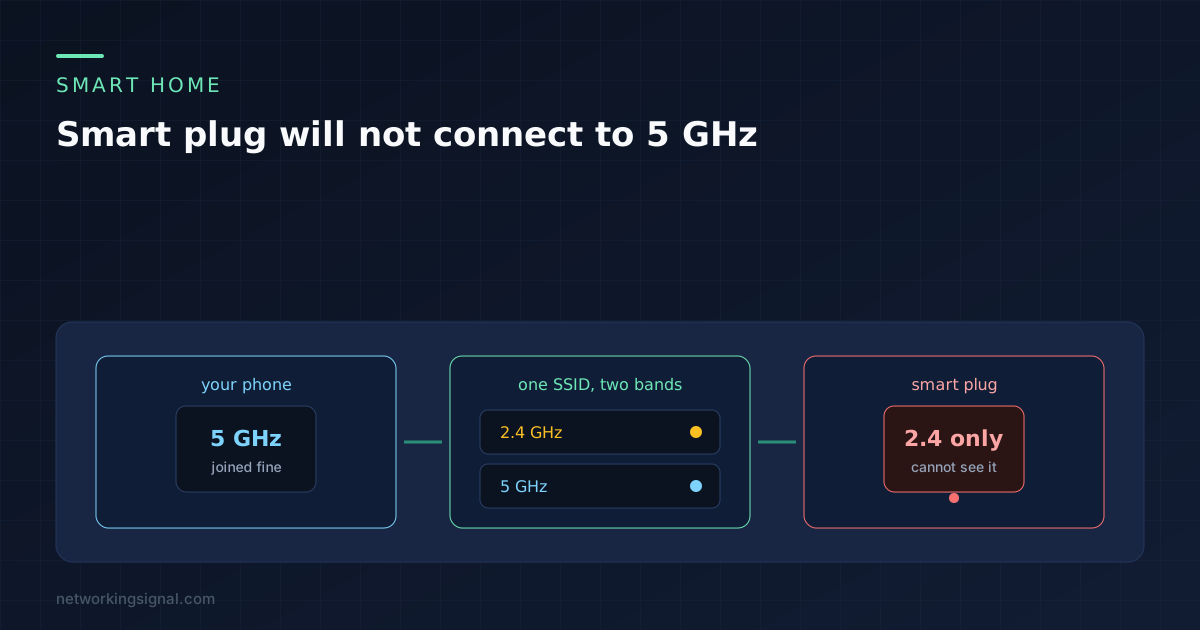
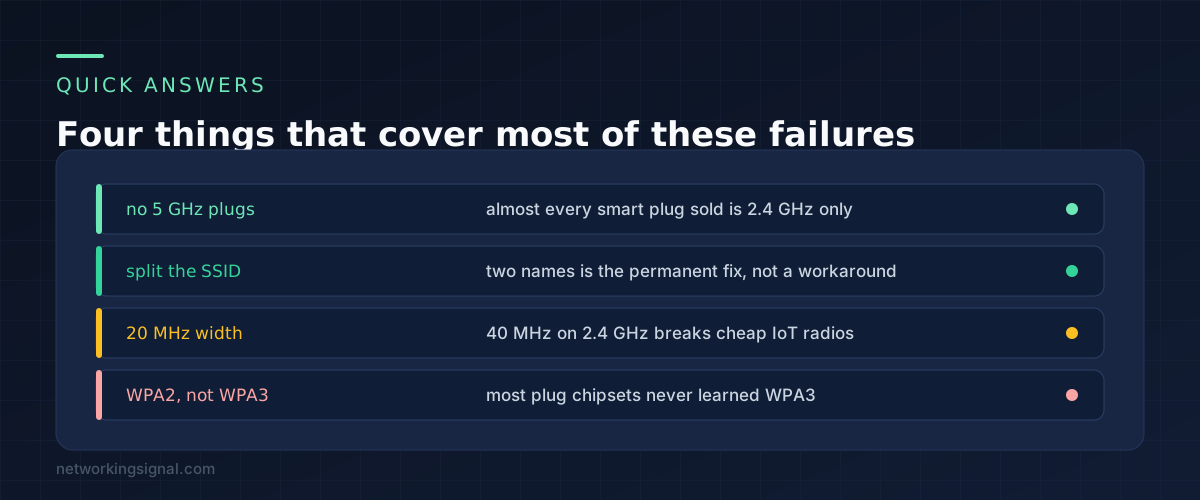
If your smart plug won’t connect to 5 GHz, that is expected rather than a fault. Nearly every smart plug on sale runs a 2.4 GHz only radio, so it cannot see a 5 GHz network at all. What breaks setup is that your phone is sitting on the 5 GHz half of a network that shares one name with both bands.
The plug is waiting for a network it can hear. The app is handing it details for one it cannot. Nothing about that improves by resetting the plug for the fifth time.
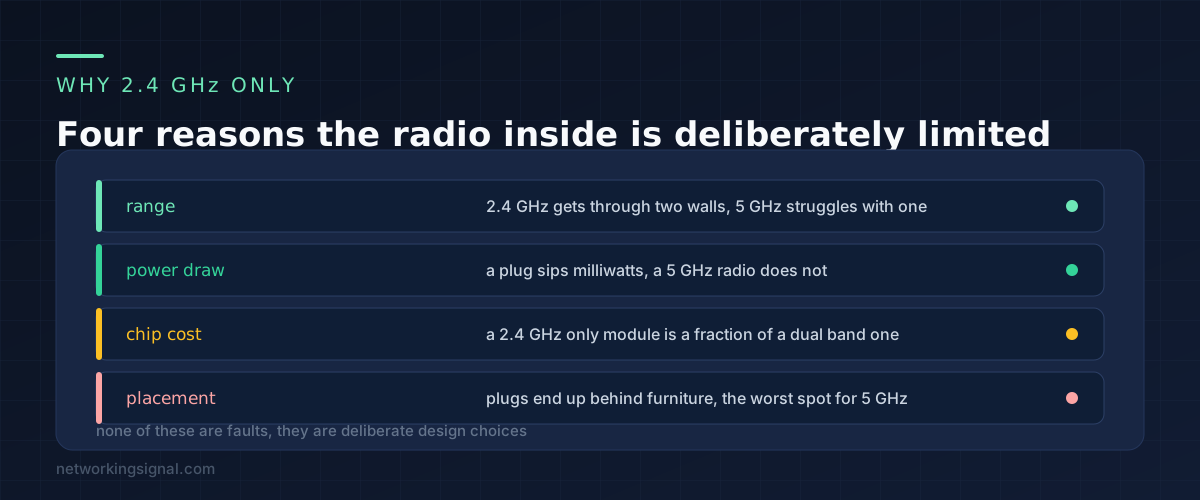
A smart plug has one job and a tiny budget for doing it. The radio inside is usually an ESP32 or a Tuya module costing a couple of dollars, and dual band versions of those parts cost several times more for capability the plug will never use.
Range is the bigger reason. The 2.4 GHz band travels further and gets through walls that stop 5 GHz. A plug is often in a hallway socket, behind a sofa, or in a garage, which is exactly where the shorter band gives up first.
Power matters too. A plug that sits idle for months needs a radio that idles cheaply, and 5 GHz radios do not.
There is also nothing to gain. Switching a lamp on and off moves a few hundred bytes. Handing a device a faster band it will never fill is spending money to make the product worse at the thing it actually needs to do, which is stay connected from an awkward spot.
Most routers sold in the last five years ship with both bands sharing a single network name. Vendors call it Smart Connect, Band Steering, or just leave it unlabelled. Your devices get moved between the bands automatically and you never notice, because for a laptop or a phone it works well.
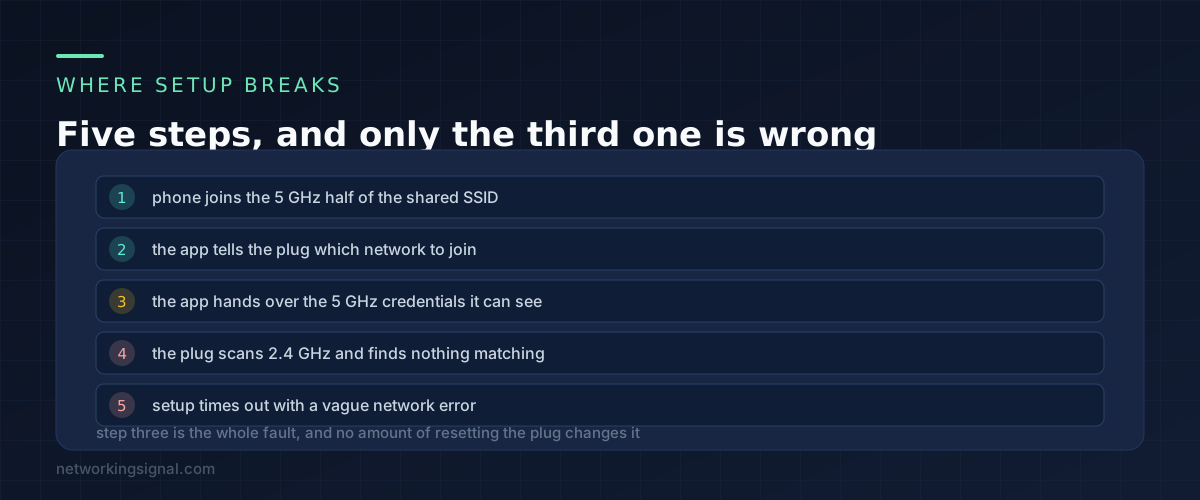
Setup for a smart plug goes like this. You open the app. The app reads which network your phone is currently on, which is very likely the 5 GHz one because that is where band steering puts a phone standing next to the router. The plug is then given that network and told to join it.
The plug scans, finds nothing on 2.4 GHz matching what it was handed, and eventually reports a generic failure. The error text almost never mentions bands, which is why this costs people an evening.
Some apps warn you. Kasa and Wyze both put up a note about 2.4 GHz before pairing, and people skip it. Many cheaper apps say nothing at all.
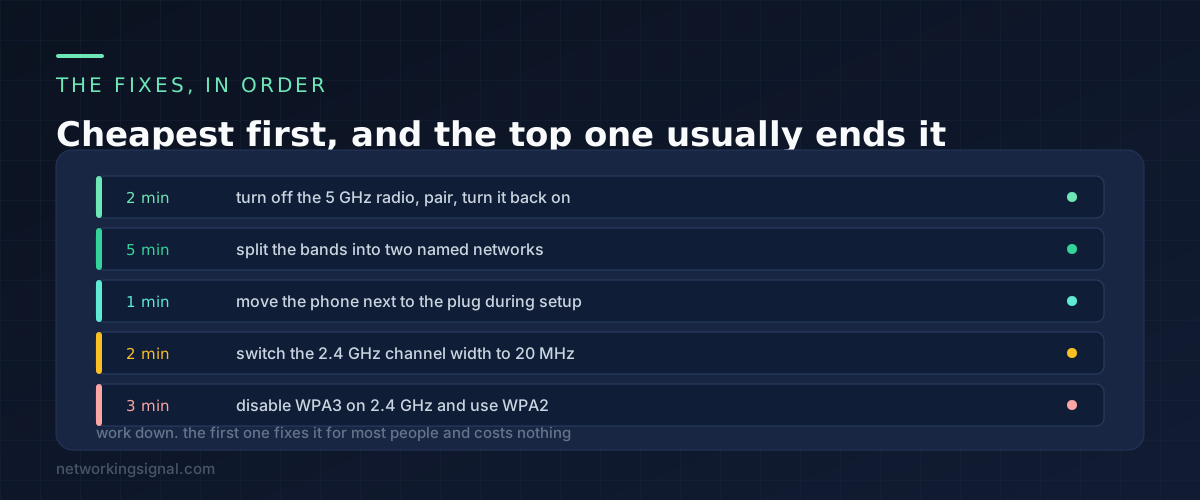
Turn off the 5 GHz radio, pair, turn it back on. In the router admin page or app, disable the 5 GHz band. Your phone drops onto 2.4 GHz because there is nowhere else to go, the app then reads the correct network, and pairing works. Turn 5 GHz back on afterwards and the plug stays connected, because it only needed the credentials once.
This is the fastest fix and it works on every router, including the ones that refuse to split their bands.
Split the bands into two named networks. Give the 2.4 GHz band its own name, something like HomeNet-IoT, and leave the 5 GHz one as it is. Join your phone to the 2.4 GHz name while pairing anything, then switch back.
This is worth doing once and forgetting. Every future smart device pairs first time, and you can see at a glance which band a device is actually on.
Move the phone next to the plug. Some apps use the phone as a bridge during setup, and a weak signal between the two causes a timeout that looks identical to a band mismatch. Keep them within a metre of each other while pairing.
Set the 2.4 GHz channel width to 20 MHz. Many routers default to 40 MHz on 2.4 GHz. Cheap IoT radios often cannot handle it and either fail to associate or drop off after a day. There is no real speed loss at 20 MHz on that band, and it reduces interference with your neighbours as well.
Drop WPA3 on the 2.4 GHz band. If your router is running WPA3 only, most plug chipsets will not associate. Set that band to WPA2, or to the mixed WPA2 and WPA3 mode if one is offered. Our guide to WPA2 against WPA3 covers what you give up, which for a lamp switch is very little.
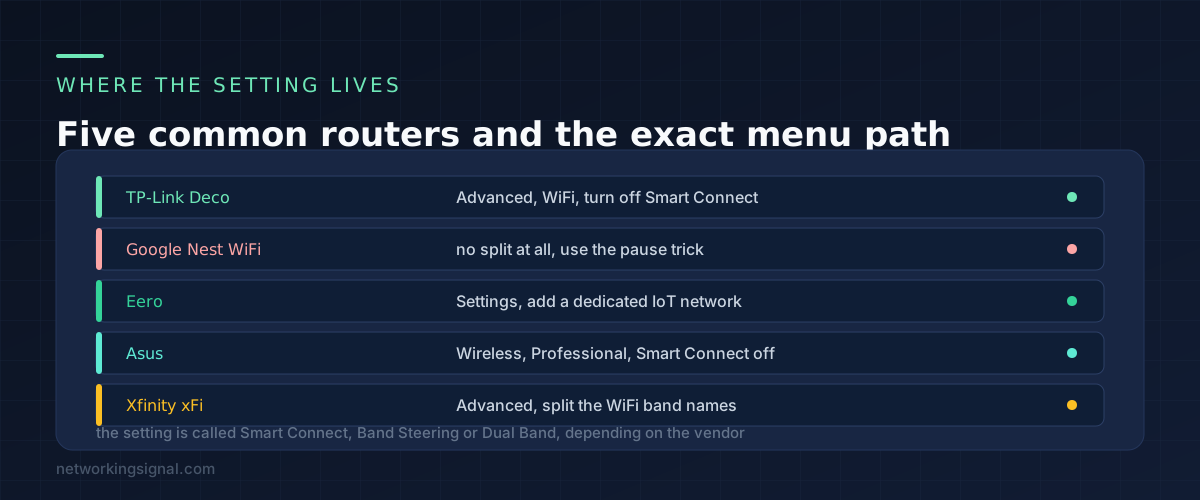
TP-Link Deco. In the app, More, WiFi settings, then turn off Smart Connect. You get two names and can rename the 2.4 GHz one.
Google Nest WiFi. There is no split, and Google has never offered one. The workaround is to move well away from the router so your phone falls back to 2.4 GHz, then pair. Awkward, but it is what is available.
Eero. Rather than splitting, add a dedicated IoT network in Settings. It runs 2.4 GHz only and exists for exactly this problem.
Asus. Wireless, then the Professional tab, and turn Smart Connect off. Asus also lets you set the 2.4 GHz channel width and security mode on the same screen, so you can do three of the fixes above in one visit.
Xfinity xFi. In the xFi app, Connect, See Network, Advanced Settings, then edit the WiFi band names so each gets its own. Some gateway models hide this behind the web admin page at 10.0.0.1 instead.
If your router is not on this list, look for anything called Smart Connect, Band Steering, Dual Band, or Mesh Optimisation. It is the same setting.
Once the bands are split, putting the plugs on their own segment becomes straightforward, and there are good reasons to do that, which we covered in setting up an IoT VLAN at home.
A handful of dual band models exist, mostly from Meross and a few Matter over WiFi devices, and they still prefer 2.4 GHz for range. Buying a dual band plug to avoid this problem is solving it at the wrong end. Splitting the network name costs nothing and fixes every device you will ever add.
No. Both bands are still there and running at full speed. All you lose is the automatic switching, so a phone stays on whichever name you joined rather than being moved as you walk around. On a single router that is a non-issue. On a mesh system, keep the 5 GHz name on your main devices and it behaves as before.
Usually a different one. Recurring dropouts point at 40 MHz channel width, a crowded 2.4 GHz channel, or the plug sitting at the edge of coverage. Set the width to 20 MHz first, then fix the channel to 1, 6 or 11 rather than leaving it on automatic.
It makes it more likely, because mesh systems push a single network name harder and several of them will not let you split at all. The dedicated IoT network that Eero and some TP-Link models offer exists precisely because of the volume of support calls about this.
It sounds tidy and it usually breaks things. Guest networks isolate clients from each other, which stops your phone from discovering the plug on the local network, and many apps need that discovery during setup and for local control afterwards. Give the plugs a separate named network instead. It keeps them tidy without the client isolation that breaks the app.
If the plug still refuses after all of this, check whether the network is reaching that socket at all before blaming the plug, using the steps in WiFi connected but no internet.
Can you explain this topic to someone else in 30 seconds? If not, re-read the key takeaways above.
The core concepts in the takeaways box above. Bookmark this page and come back when you need a refresher.
Hand-picked articles you might also find useful.
 Networking Gears
 The best outdoor WiFi extenders for 2026. The TP-Link EAP650-Outdoor at $134.99 is the pick. Includes why you…
 Wireless
 What is MU-MIMO Technology? MU-MIMO technology is a wireless communication technology that allows multiple users to be served…
 Wireless
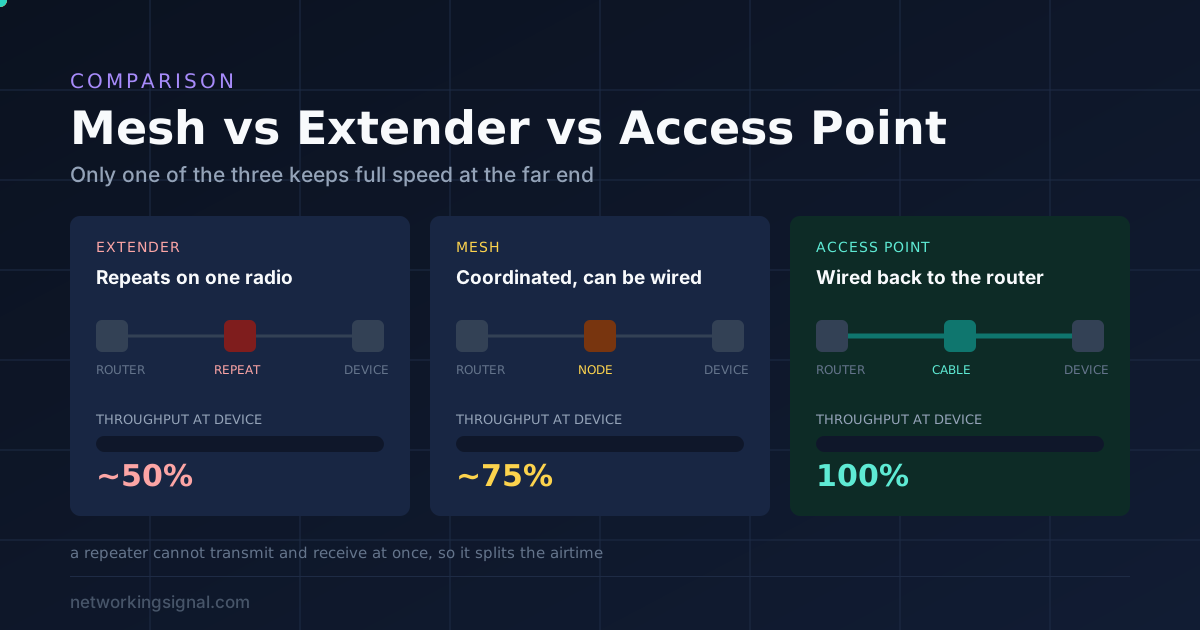
 Mesh WiFi, a range extender or an access point? One question decides it: can you run a cable.…