
TP-Link Deco BE95 Review 2026: Worth It Only If You Cannot Run Cable
A TP-Link Deco BE95 review for 2026. The second 6 GHz band is the whole reason it costs…
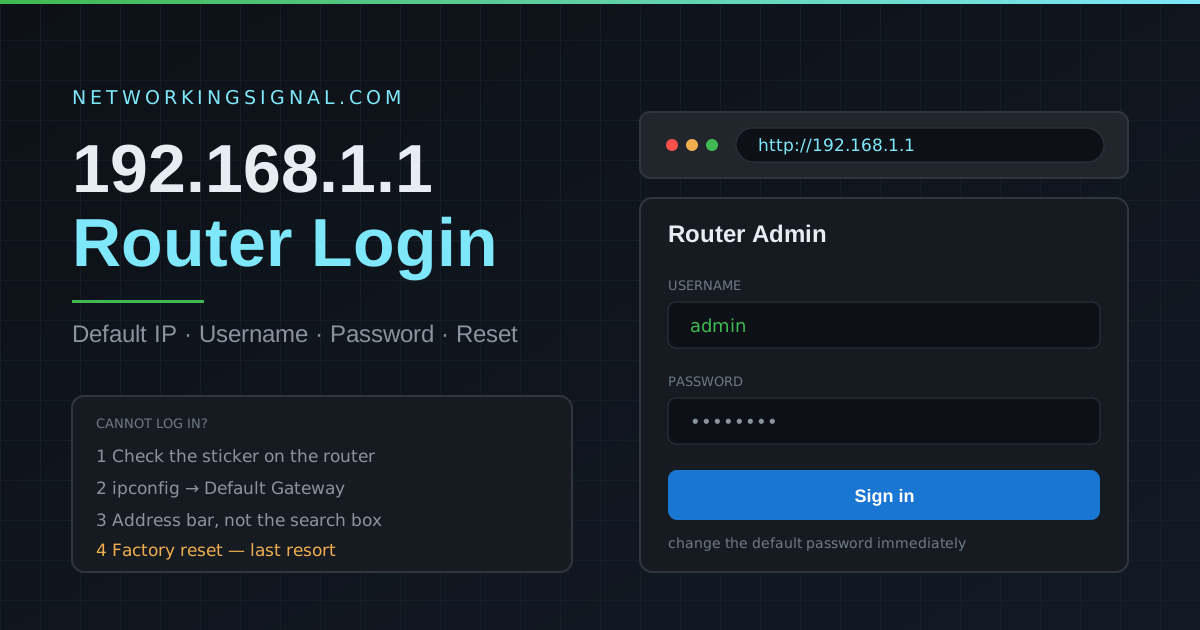
192.168.1.1 router login lets you open a home router’s local admin panel when that is the router’s actual default gateway. Connect to the router, type the address directly in the browser, then use the credentials on the device label or created during setup.
Important: Type the IP directly in the address bar, not in Google search. If you see a Google search result, you typed it in the wrong bar.
| Brand | Default IP | Username | Password |
|---|---|---|---|
| TP-Link | 192.168.1.1 | admin | admin |
| ASUS | 192.168.1.1 | admin | admin |
| Netgear | 192.168.1.1 | admin | password |
| Linksys | 192.168.1.1 | admin | (blank) |
| D-Link | 192.168.1.1 | admin | (blank) |
| Tenda | 192.168.1.1 | admin | admin |
| Belkin | 192.168.1.1 | (blank) | (blank) |
| Huawei | 192.168.1.1 | admin | admin |
| TP-Link (newer) | 192.168.1.1 | admin | printed on label |
| ASUS (newer) | 192.168.1.1 | admin | admin or on label |
Tip: If defaults don’t work, check the sticker on the bottom or back of your router, most modern routers have a unique password printed there.
192.168.1.1 is a private IPv4 address in the Class C private range (192.168.0.0 to 192.168.255.255, defined in RFC 1918). It is not reachable from the internet, it exists only within your local network. Router manufacturers use it as the default gateway IP because it is simple and unlikely to conflict with other devices.
Your router assigns itself this IP and uses it as the default gateway, the address all your devices send traffic to when accessing the internet. It also serves as the admin panel address where you can configure your router settings.
| IP Address | Common Brands | Subnet |
|---|---|---|
| 192.168.1.1 | TP-Link, ASUS, Netgear, Linksys, D-Link | 192.168.1.x |
| 192.168.0.1 | Cisco, some Netgear, some D-Link | 192.168.0.x |
| 10.0.0.1 | Apple AirPort, some ISP routers | 10.x.x.x |
| 192.168.100.1 | Some Huawei, ZTE ISP routers | 192.168.100.x |
Use our Default Router IP Finder tool to find your exact router’s admin IP.
Once logged in to 192.168.1.1, you can:
ipconfig → look for “Default Gateway”cmd → Enteripconfig → press EnterThe most common reasons: (1) Your router uses a different IP, run ipconfig on Windows to find your actual default gateway. (2) You’re not connected to the router, check your WiFi or cable connection. (3) You typed it in Google search instead of the browser address bar. (4) Your VPN is active and changing your routing.
No. 192.168.1.1 is the most common default gateway but not universal. Cisco routers often use 192.168.0.1. Apple AirPort uses 10.0.0.1. Some ISP-provided routers use 192.168.100.1 or 192.168.254.1. Always verify with ipconfig (Windows) or ifconfig (Mac/Linux).
Yes. In the admin panel under LAN settings, you can change the router’s IP to any private address you prefer (e.g., 192.168.10.1). After saving, you’ll need to use the new IP to access the admin panel. All DHCP-assigned addresses will automatically update to the new subnet.
For most TP-Link routers, the default username is admin and the default password is admin. However, newer TP-Link models (released after 2019) require you to create a password on first setup, check the label on the bottom of the router for any pre-set credentials.
You cannot recover a forgotten router admin password without a factory reset, the password is stored in the router’s firmware with no password recovery option. You must factory reset the router, which erases all settings and restores factory defaults including the original username and password shown on the router label.
Only if your router’s label or manual explicitly lists those credentials. Many current routers ask you to create an administrator password during setup, while ISP-provided devices often use model-specific credentials.
Use the default gateway reported by your connected device instead of assuming a universal address. On Windows, run ipconfig and find “Default Gateway”; on macOS, check the router value in network settings. Then enter that address in the browser.
You can often change the Wi-Fi name and passphrase separately, but the administrator password should also be unique. It protects the settings that control your entire home network.
Find any router’s local address with the default router IP finder, compare the 192.168.0.1 router login, and follow the safe reset process in our TP-Link router reset guide.
Hand-picked articles you might also find useful.
 Routers
 A TP-Link Deco BE95 review for 2026. The second 6 GHz band is the whole reason it costs…
 Routers
 If you're like most people, you probably have a router in your home that you use to connect…
 Routers
 The best routers for PS5 in 2026. The ASUS RT-BE86U at $199 wins on latency handling, not speed.…