
Zero Trust Security — Complete Guide for Network Engineers
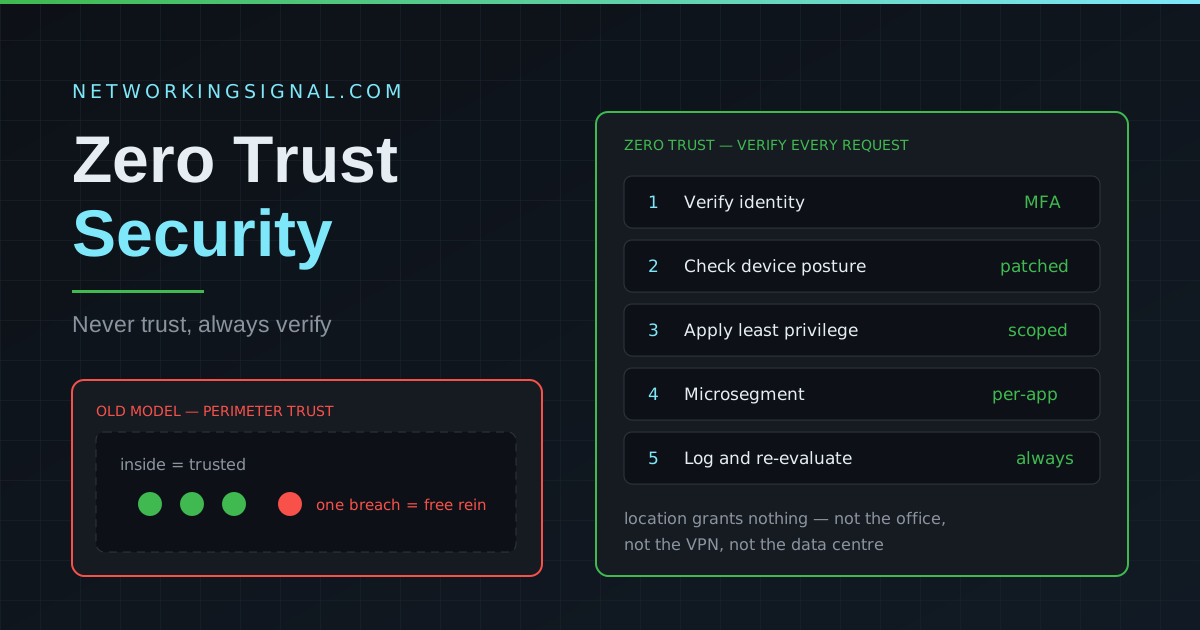
Complete guide to Zero Trust Security — what it is, how it works, Zero Trust vs VPN, ZTNA…
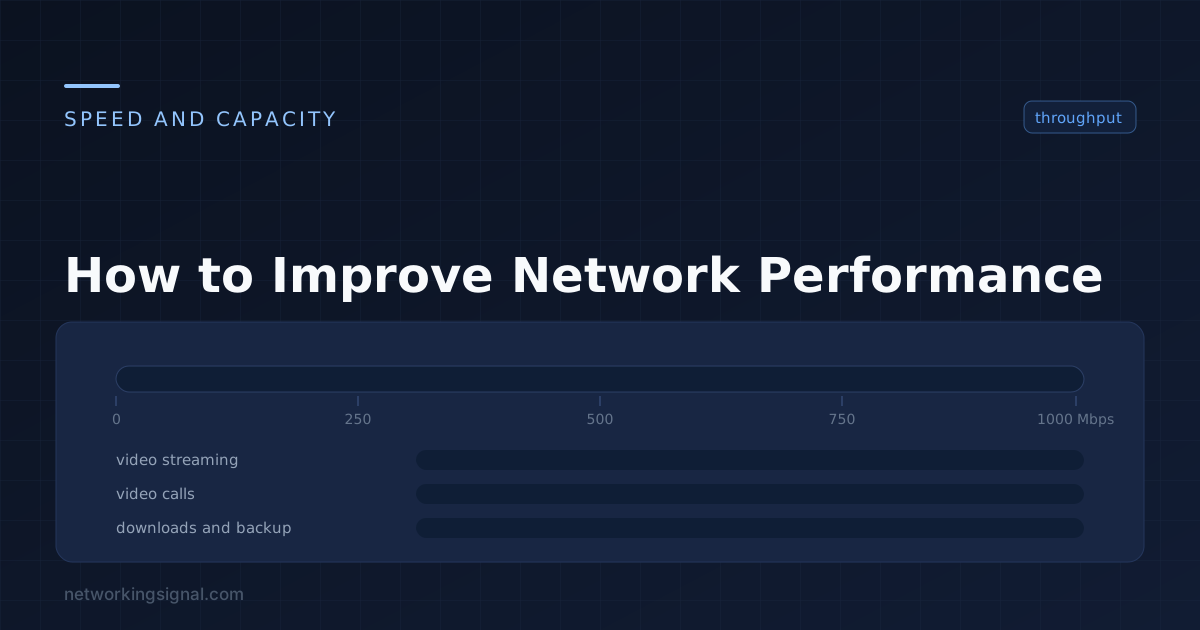
“The network is slow” is a symptom with a dozen possible causes, and guessing at fixes wastes time. The fastest route to a resolution is to narrow down where the problem is before changing anything.
Three different complaints get described the same way, and they have different causes:
| Complaint | The real metric | Usual cause |
|---|---|---|
| Downloads take too long | Throughput | Cabling, duplex, congestion, TCP window |
| Pages are slow to start loading | DNS or latency | Slow resolver, distant server |
| Calls break up, gaming lags | Jitter and loss | Congestion, WiFi interference, buffer bloat |
Ask when it started, whether it affects everyone or one person, wired or wireless, and whether it is constant or intermittent. That alone eliminates most of the possibility space.
# 1. Is the local network healthy?
ping 192.168.1.1 -n 50        # gateway: expect <1 ms wired, 0% loss

# 2. Is the internet path healthy?
ping 8.8.8.8 -n 50            # expect stable RTT, 0% loss

# 3. Is DNS the problem?
nslookup google.com
nslookup google.com 8.8.8.8   # if this is much faster, your resolver is the issue

# 4. Where does latency appear?
tracert 8.8.8.8               # Windows
mtr 8.8.8.8                   # Linux/macOS, far better, runs continuously
Any packet loss to your own gateway is a fault, and it is local, cable, port, or WiFi. Loss that only appears several hops out is usually rate limiting on an intermediate router and often harmless if the final destination has none.
This is the most common cause of unexplained slowness on a wired network, and the easiest to overlook.
Switch# show interfaces GigabitEthernet0/5 | include duplex|CRC|input errors|late collisionIf the problem is wireless only, wired diagnostics will show nothing.
Slow DNS feels exactly like a slow network, pages hang before they start loading, then render instantly. If nslookup google.com 8.8.8.8 is much faster than the default, change resolvers on the DHCP server so every client gets the fix.
If a link is saturated, everything queues behind whatever is filling it. Look at interface utilisation before assuming a fault:
Switch# show interfaces GigabitEthernet0/1 | include rateWhere a link is genuinely full, QoS reprioritises rather than adding capacity. Mark voice and video as higher priority so they are served ahead of bulk transfers. Without QoS, a single large backup will destroy call quality on the same link.
An underrated cause of "fast on speed tests, terrible in use". Oversized buffers in routers and modems fill during a large transfer and add hundreds of milliseconds of latency to everything else. The signature is low ping when idle, very high ping during a download.
The fix is a modern queue management algorithm, fq_codel or CAKE, on the router, with the shaper set slightly below your actual line rate so the queue forms where you control it.
A few hundred hosts in one broadcast domain means every device processes every broadcast. Segment with VLANs, users, voice, guests, IoT, servers.
If the root bridge was never set explicitly, the switch with the lowest MAC address won, frequently the oldest access switch in a cupboard. Traffic then takes an absurd path through it. Set the root explicitly on your core switch.
Switch(config)# spanning-tree vlan 1-100 root primaryIf transfers are fast locally and slow to a distant site, the constraint is likely the bandwidth-delay product rather than the link. Ensure TCP window scaling is enabled, and use parallel streams for bulk transfers.
Test with iperf3 memory-to-memory. If iperf3 hits line rate but file copies do not, the bottleneck is disk, antivirus scanning, or the application, not the network.
iperf3 -c 10.10.10.5 -t 30 -P 4The hardest performance problems are the ones where nobody knows what normal looks like. Record, while things are healthy:
With a baseline, "slow" becomes a measurable deviation instead of an opinion.
Speed tests measure raw throughput under ideal conditions. They do not show latency under load, jitter, DNS delay or intermittent loss. Buffer bloat in particular produces excellent speed test results and a terrible experience.
Only if the router was the bottleneck, usually an old model that cannot route at your line rate, or a weak WiFi radio. It does nothing for an ISP problem or a cabling fault.
Plug into Ethernet and repeat the test. If the wired connection is fine, the problem is wireless. Also ping your gateway, loss or high latency there is local, not the ISP.
Oversized buffers filling during heavy transfers, adding large amounts of latency to all other traffic. The tell is low ping when idle and very high ping while downloading. Fix it with fq_codel or CAKE on the router.
It helps if several people share a connection and calls or gaming suffer when someone downloads. It cannot create bandwidth, only decide who waits.
Around 940 Mbps. Protocol overhead accounts for the rest, so that figure is healthy, not a fault.
Hand-picked articles you might also find useful.
 Security
 Complete guide to Zero Trust Security — what it is, how it works, Zero Trust vs VPN, ZTNA…
 Security
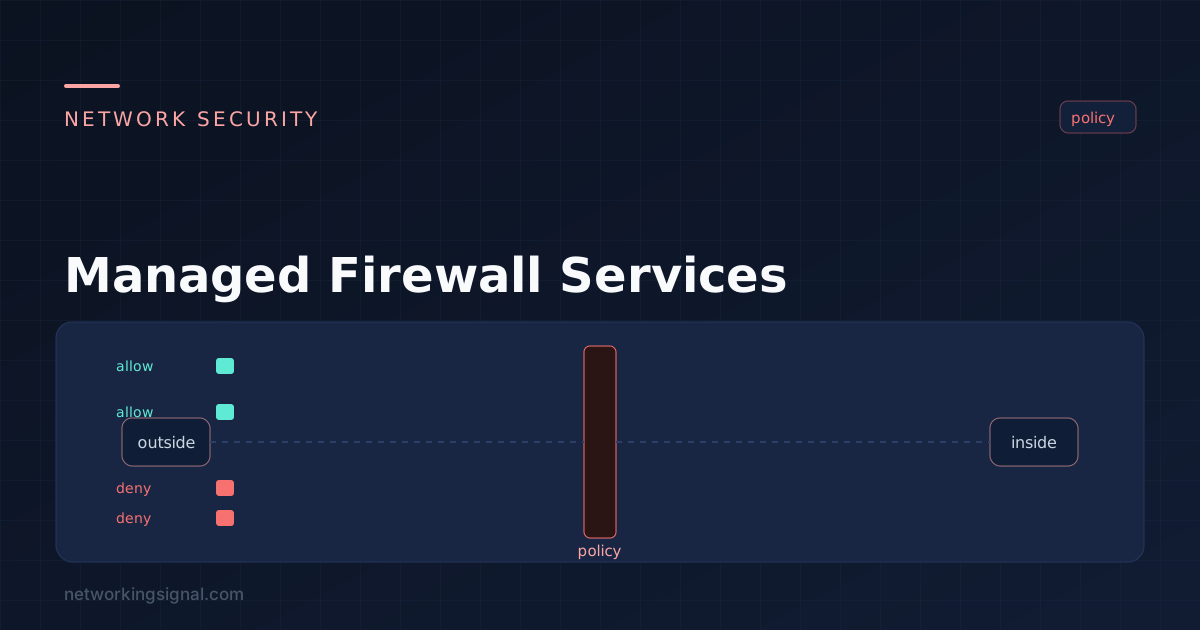
 A managed firewall service outsources configuration, monitoring and rule changes to a provider. What is actually included, realistic…
 Security
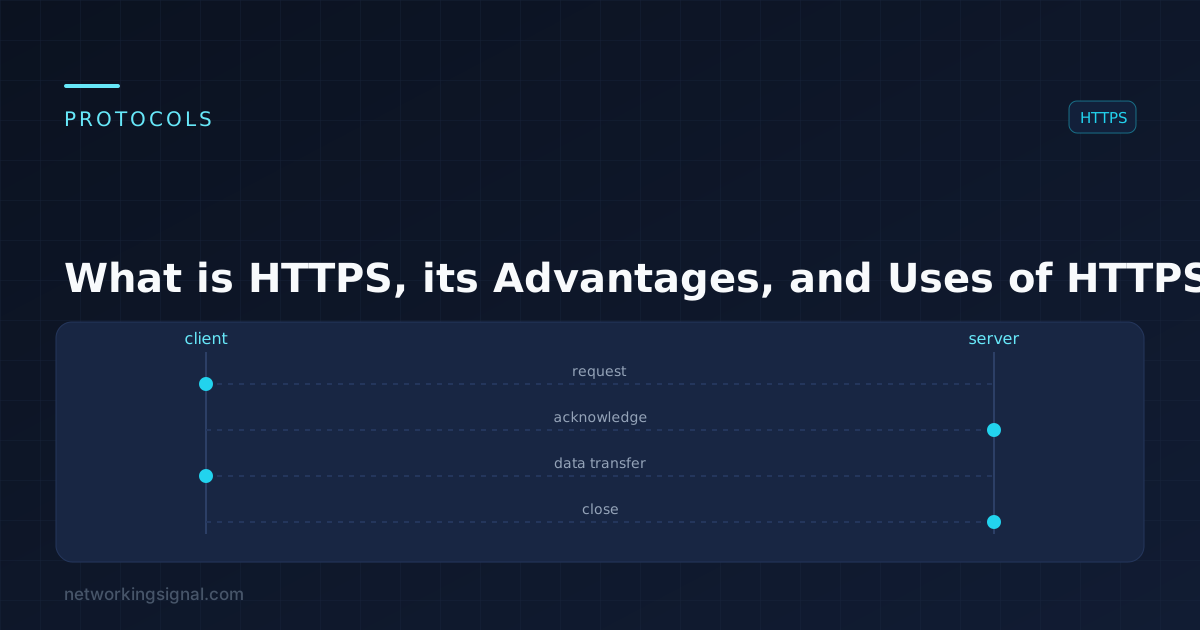
 What is HTTPS? HTTPS is a secure communications protocol that allows for the exchange of information between a…